Compose an email from a template
A template is an email with the layout and styling already built, and the parts that change each send left as fields to fill in. Composing from one means filling in a form and picking content. You don’t touch any code, and the result looks the same as an email built by hand.
Templates suit emails you send in the same shape again and again: a weekly newsletter, a monthly digest, a product announcement. For a one-off with no set layout, write the email in MJML or HTML instead. See Create & send a broadcast.
In this section:
- Compose an email from a template (this page) — pick a template, fill it in, preview, and send.
- Build a template — for whoever builds the layout and decides what can be filled in.
- Create a content block — reusable pieces that drop into a template’s slots.
Before you begin#
- At least one template, built by whoever looks after templates on your team. See Build a template.
- Everything a normal broadcast needs: a confirmed sender, an email type, and an audience.
Switch to Template#
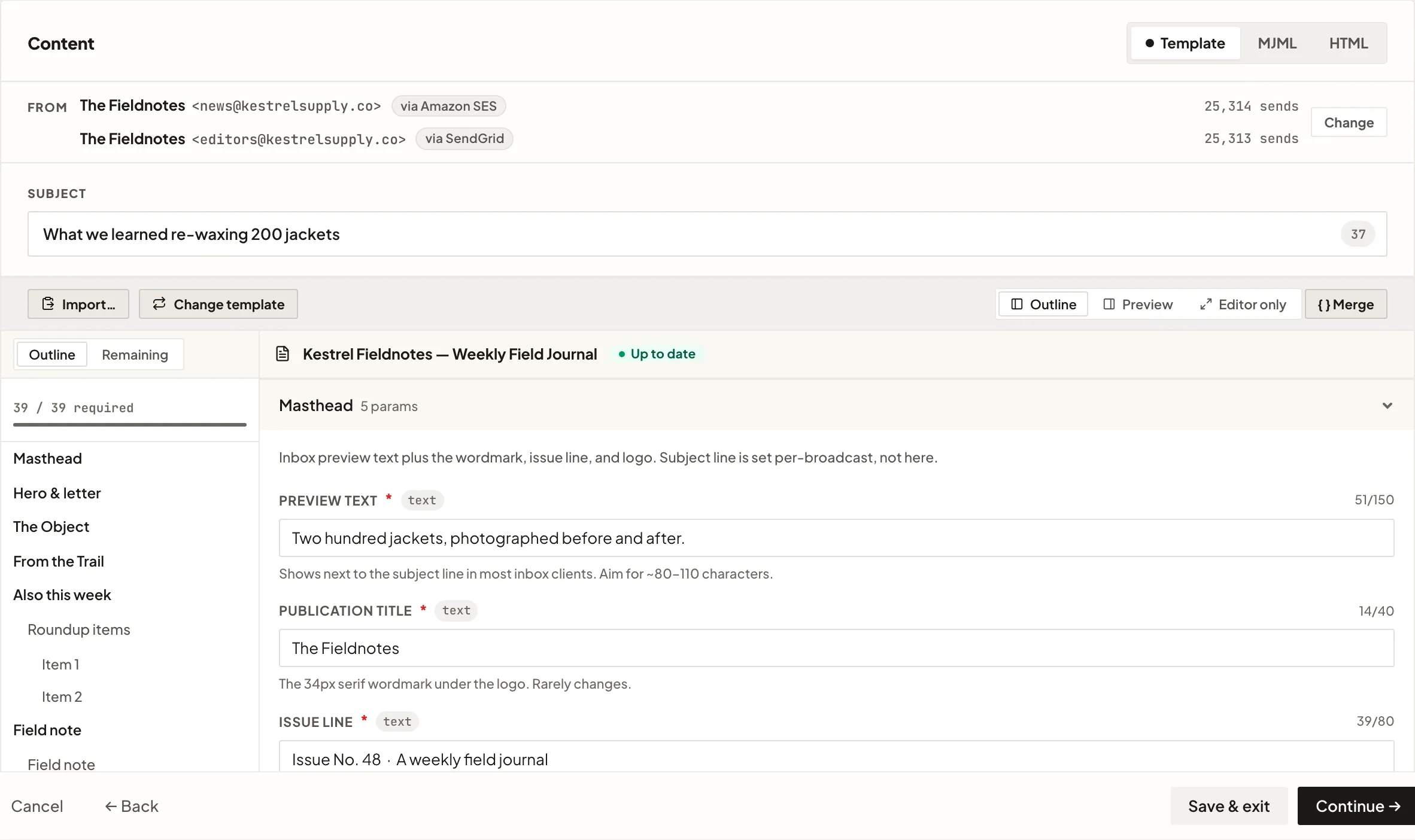
Create a broadcast and go to the Content step. At the top right of the Content card, switch from HTML (the default for a new broadcast) to Template.
The Subject belongs to the broadcast, not the template, so you write it for each send. Merge tags like {{first_name}} work there as usual.
If you switch back to MJML or HTML after filling in a template, RadarSend asks you to confirm. What you filled in stays on screen for now, but saving in the other format replaces it, and it won’t come back after a reload.
Pick a template#
Under Pick a template, click Browse templates and choose one, or use Search templates… to find it by name. Each template shows how many fields and slots it has. Picking one builds the form.
Once you’ve picked, the template’s name sits in a bar above the form, marked Up to date, with a count of anything still to fill in. Change template swaps it for a different one, which clears everything you’ve filled in, so RadarSend asks first. Import… fills the whole form at once from a prepared document. See Import content instead of typing it.
Fill in the fields#
The form is arranged in groups, such as Masthead, Body, and Footer, set up by whoever built the template. A group can hold single fields, repeating rows, and slots.
Fields#
Each field shows its label and a small tag with its type.
| Tag | What you enter |
|---|---|
| text | A short, single line. A counter appears if there’s a length limit. |
| multiline_text | Several lines. Line breaks are kept, formatting isn’t. |
| rich_text | Text with bold, italic, underline, and links. See Rich text fields. |
| url | A web address. RadarSend checks it. |
| link | A URL and the Link text people click, such as a button label. Both are needed. |
| image | An Image URL and its Alt text. Fill in the alt text: it shows when the image can’t load, and it’s what screen readers read out. |
| image_link | A clickable image: the Image URL, its Alt text, and where it Links to. |
| boolean | On or off. Usually turns an optional part of the email on. |
| enum | One of a fixed set of choices. |
| number | A number. |
| date | A date. The template decides how it’s written out in the email. |
Required fields carry a red *. A default shows as greyed-out text, and it’s used if you leave the field empty. Help text under a field is where the template’s builder explains anything that isn’t obvious, like which image sizes look right.
Some fields only appear once another field has a particular value, such as a “Webinar date” that shows up after you turn “Include webinar” on. A field you can’t see is never required.
Rich text fields#
Rich text takes a small set of formatting marks, with a toolbar above each field:
| You type | You get | Shortcut |
|---|---|---|
**bold** | bold | ⌘B |
*italic* | italic | ⌘I |
__underline__ | underlined text | ⌘U |
[click here](https://example.com) | a link labeled “click here” | ⌘K |
Merge tags work here too: Hi **{{first_name}}**, welcome back fills in each recipient’s name as the email sends.
Headings, lists, and quotes are left out on purpose; anything that needs them belongs in the template itself. Under each rich text field, a Plain text caption shows the version people with text-only email apps will get.
Repeating rows#
Some parts of a template are a list of rows in the same shape: article summaries, product cards, event listings. The heading shows how many rows you have and the most you’re allowed.
- Add row adds one. It’s greyed out once you reach the limit.
- Rows can be reordered and removed from their own controls, and each folds down to a one-line summary so a long list stays readable.
- If the template needs a minimum number of rows, the form starts with that many and won’t let you go below it.
Slots#
A slot is a place where a whole reusable block goes: a featured article, an ad, a footer banner. Each slot has its own card. Choose how to fill it from the options at the top of the card; only the ones the template allows are shown.
| Option | What it does |
|---|---|
| One block | One block, the same for everyone. Pick the block, then fill in its own fields underneath. |
| Rotate | RadarSend picks from a pool of blocks for each recipient. Tick at least one key under Narrow by slot key to set the pool, and choose How many per recipient (1 to 10). Eligible blocks lists what’s in the pool. Useful for rotating ads without setting up an A/B test. |
| By rule | People who match a rule get one block, and everyone else gets another. Choose a Contact field, a comparison (equals, not equals, exists, or doesn’t exist), and a Value, then a block for If true and for If false. |
| Nothing | That part of the email is left out. |
Track what’s left#
On a wide screen, a switch above the form chooses what sits beside it: Outline, Preview, or Editor only.
The Outline panel shows where the work is. It has two tabs:
- Outline — everything in the template, in order. Click a row to jump to it.
- Remaining — only what’s still to do, with a count on the tab.
At the top, a meter reads N / M required. Unfinished fields and fields filled in wrongly, like a malformed web address, are marked in the outline.
Continue → won’t move on while anything required is missing or wrong. The footer then shows how much is left, such as 3 to finish (or Variant B: 3 to finish in an A/B test). Click it to mark everything outstanding and jump to the first one.
Preview#
Set the side panel to Preview to see the email beside the form. On a narrower screen, use the Compose, Preview, and Plain text tabs instead. Above the preview, switch between Rendered and Plain text, and between Desktop and Mobile widths.
The preview keeps up as you type. It doesn’t show:
- Merge tags filled in with a real person’s details.
{{first_name}}stays as it is. - Tracked links, UTM parameters, or real unsubscribe and view-in-browser links.
- Which block a Rotate or By rule slot will use. Those slots show a placeholder, because the block is chosen for each recipient as the email sends.
To see all of that, send yourself a test.
Test before you send#
Save the draft, then use Send test on the Review & Schedule step. It sends a real email using the details of the first reachable recipient, from every sender you’ve selected. Check it on desktop, on mobile, and in dark mode, and click the links. Testing works exactly as it does for any broadcast. See Review & send.
Import content instead of typing it#
Import… fills the whole form at once from a document, which helps when a colleague or a script has prepared this issue’s content. In Import content for this template, paste YAML or JSON: a complete API request, or just the values under parameters, slots, and sections.
Insert example drops in a worked example, filled with the template’s defaults and the blocks you’ve chosen so far. It’s the quickest way to see the shape you need. It needs a block picked for every slot first.
Everything is checked against the template before it lands, so a document that doesn’t match tells you what’s wrong instead of half-filling the form. Nothing changes until you click Import.
When the template changes#
If someone edits the template after you started, a banner appears when you next open the draft, with two buttons:
- Update to latest shows exactly what changed (fields removed or changed, new required fields, slots and rows that had to be reset) and applies it only when you click Apply rebase. Anything whose name and type still match keeps its value.
- Keep current hides the banner for now. It comes back the next time you open the draft.
Your saved email doesn’t change until you save it again. When you do, it’s built from the template as it is now, so review the changes with Update to latest before you save.
A/B testing#
A/B tests work as they do for any broadcast. When Body is one of the things you’re testing, each variant gets its own copy of the form: the same template, with its own field values and its own slot choices. See A/B test a broadcast.
Continue → counts what’s left across every variant, not only the one you’re looking at, and names the first variant with work to do.
Reuse last month’s#
Duplicate a past broadcast from the Broadcasts list. The copy, named “(copy)”, carries the template, every field value, and every slot choice. Change what’s different this time and send.
Common issues#
- The template list is empty. Nobody has built a template yet. See Build a template.
- Continue is greyed out. Something required is missing or wrong. Open the Remaining tab and work down it.
- A block you expected isn’t offered. Its slot keys don’t match the slot. See Create a content block.
- “Block not found” on a slot. The block was deleted, or its slot keys changed so it no longer fits the slot. Click Re-select and choose again.
- The preview shows
{{first_name}}instead of a name. That’s expected. Send a test to see merge tags filled in. - A slot shows a placeholder instead of a block. It’s set to Rotate or By rule, so the block is picked for each recipient as the email sends.
- The broadcast is locked. Scheduled, sending, and sent broadcasts can’t be edited. Cancel the schedule if it’s early enough, or duplicate it into a new draft.
- A field disappeared while you were typing in it. It only shows when another field has a particular value, and that value changed. Fields you can’t see are never required.
Good to know#
- The subject is yours, not the template’s. It lives on the broadcast, and you write it each send.
- Block fields pick up the template’s values. A block that uses something the template sets, like a brand color, gets it automatically. Anything set on the block itself wins.
- Templates work in sequences too. The same Template option appears when you write an email in the Emails library, so a template can drive a sequence email.
- Everything after scheduling is normal. RadarSend builds the finished email from the template, your values, and your block choices, and treats it like any other broadcast: the same tracking, suppression, and reporting.