Automate with rules
An Automation is a rule with one trigger and one action: when this happens to a contact, do that. When a contact’s customer score passes 70, move them to the Customer stage. When someone submits the demo form, post them to your CRM. The action runs as soon as the trigger fires, and the rule keeps running for every contact who qualifies.
Automation or sequence?#
Both react to things contacts do, and they share the same triggers. The difference is what happens next.
- Use an Automation for a single, immediate change to a contact’s record, or to tell another system about them. Automations don’t send email, don’t wait, and don’t branch. They fire every time the trigger happens, unless you set a cooldown.
- Use a sequence when you want to send email, wait between steps, or take different paths depending on what a contact does. A contact enrolls in a sequence and moves through it, and the sequence reports on how they did.
A sequence’s Action step can do everything an Automation can and more, including removing a contact from a list, unsubscribing them, and adding to a number instead of overwriting it. If you need one of those, or a delay before the change, build a short sequence instead.
Before you begin#
Set up whatever your rule will refer to:
- A score threshold or an activity needs activities defined under Settings→Contacts & scoring→Activities. Activities are also the rules that give contacts their score points.
- A list or segment needs to exist. See Use static lists and Build a segment.
- A webhook works best saved under Settings→Developer→Webhooks first. See Send webhooks to other apps.
Create an Automation#
- In the main sidebar, click Automations.
- Click Add automation.
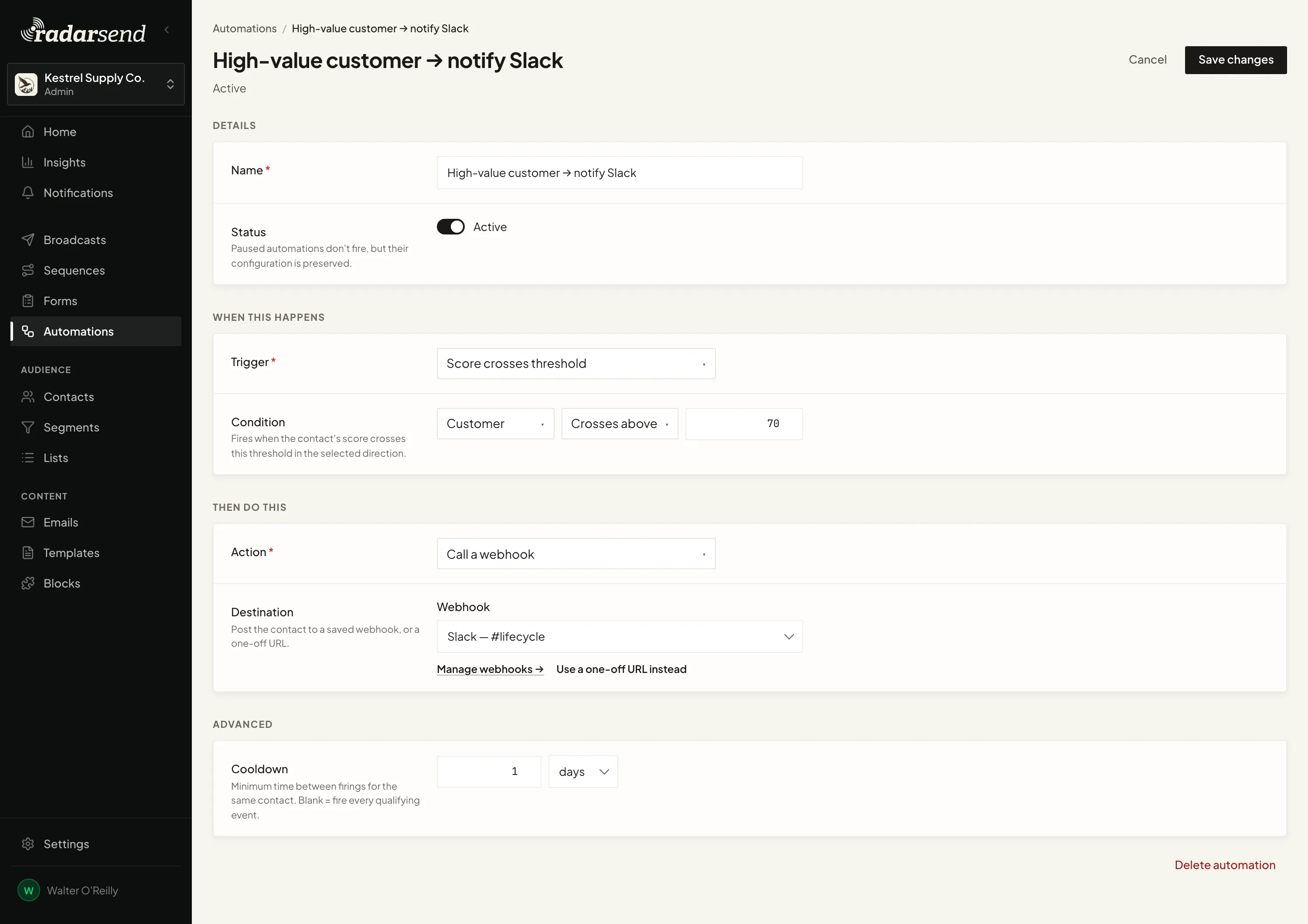
- Under Details, give it a Name, for example
Move to SQL when score >= 50. Leave Status on Active unless you want to set it up now and switch it on later. - Under When this happens, choose a Trigger and fill in its settings (see below).
- Under Then do this, choose an Action and fill in its settings (see below).
- Click Create automation.
The rule starts working straight away. It reacts to things that happen from now on. It doesn’t look back at contacts who already met the condition.
Triggers#
| Trigger | Fires when | Settings |
|---|---|---|
| Score crosses threshold | A contact’s score moves across a number. | Prospect or Customer score, Crosses above or Falls below, and the number. It fires on the crossing only, not every time the score changes while it’s above. |
| Activity occurs | A contact records an activity enough times. | The Activity, Min. times, and Within (days). It fires when the contact records the activity and their count in the window reaches the minimum. |
| Submits a form | A contact submits a form. | The Form, or Any form. |
| Added to a list | A contact is added to a static list. | The List. Fires right away. |
| Removed from a list | A contact is removed from a static list. | The List. Fires right away. |
| Enters a segment | A contact starts matching a segment’s rules. | The Segment. Segments are checked about every 5 minutes, so this fires shortly after, not instantly. |
| Exits a segment | A contact stops matching a segment’s rules. | The Segment. Checked about every 5 minutes, like Enters a segment. |
| Contact field changes | A contact’s stage or a custom field changes. | The Field, plus optional Changed from and Changed to values. Leave both blank to fire on any change to that field, or set Changed to to fire only when it changes to that value. |
Activities only count real people. Page views and events that look like bots are left out, and a page view that’s still being checked fires the rule once it’s confirmed as human, which can take up to about 12 hours. See How open & click tracking works for how RadarSend tells people from machines.
Actions#
Each Automation has one action:
- Change stage — moves the contact to the Target stage.
- Add to list — adds the contact to the Target list. Only static lists are offered: a dynamic segment’s members come from its rules, so contacts can’t be added to one.
- Call a webhook — sends the contact’s record to another system. Under Destination, pick a saved Webhook, or click Use a one-off URL instead. See Send webhooks to other apps.
- Set custom field — writes a value to one of the contact’s custom fields. Pick the field from the list and enter the value (for example
demo_request). The value replaces whatever was there. The list shows the fields under Settings→Contacts & scoring→Custom fields, so create the field there first; see Custom fields.
Limit how often it fires#
By default, an Automation fires every time its trigger happens. A contact who submits the same form three times triggers it three times.
To space that out, open Advanced and set a Cooldown, in hours or days. After the rule runs for a contact, it won’t run for that contact again until the cooldown is over. Leave it blank to fire on every qualifying event.
Pause, edit, or delete#
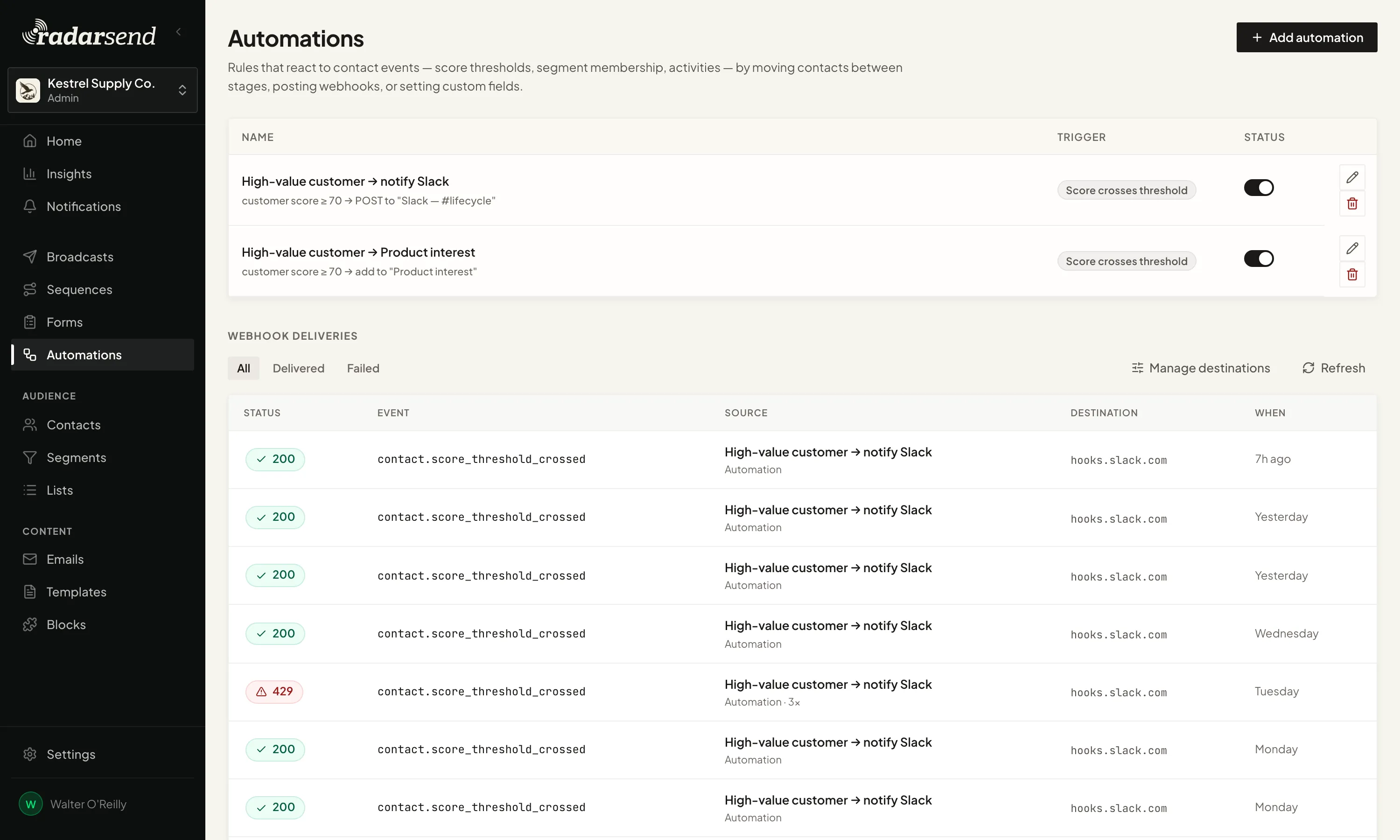
- Pause: switch off the toggle in the Status column on the Automations list. It takes effect right away. A paused Automation doesn’t fire, but keeps its settings. Switch it back on to resume; it doesn’t catch up on what happened while it was off.
- Edit: click the rule’s row, or its Edit button. Change what you need and click Save changes.
- Delete: click the rule’s Delete button, or Delete automation at the bottom of the editor, then confirm. Deleting can’t be undone.
Imports and bulk edits#
Contacts you import or change in bulk don’t trigger Automations unless you ask them to. To let them:
- When you import contacts, switch on Trigger automations for imported contacts on the Preview step.
- When you edit contacts in bulk from the Contacts list, switch on Trigger automations for these contacts.
Common issues#
- The rule didn’t fire for contacts who already qualified. Automations react to changes as they happen. A contact whose score was already above the threshold when you created the rule won’t trigger it until their score drops and crosses again. To act on people who already qualify, use a sequence and enroll them by hand. See Track a sequence.
- A segment trigger fired a few minutes late. Segments are checked about every 5 minutes. For an instant reaction, use a static list with Added to a list.
- The editor says the target “is a segment, not a list”. The rule was saved before Add to list was limited to static lists, and it fails every time it runs. Pick a list and save.
- “There is no custom field with the key …”. A Set custom field action has to name a field that exists. Pick one from the list, or create it under Settings→Contacts & scoring→Custom fields first.
- An activity rule is slow to fire. Page views are held until RadarSend confirms they came from a person. This can take up to about 12 hours.
- The rule fires too often. Set a Cooldown under Advanced.
- A webhook didn’t arrive. Check the Webhook deliveries log below the Automations list for the status and error.
- I can’t see an Automation I didn’t create. Sequences use the same machinery for some of their entry triggers, but those rules are managed from the sequence and don’t appear on this list.
Good to know#
- Several rules can react to the same thing. Each one runs on its own.
- Rules can set each other off. A Change stage in one Automation can trigger another Automation’s Contact field changes trigger on Stage. An Automation never retriggers itself.
- Automations don’t send email. To email a contact when something happens, use a sequence with the same trigger.
- Only webhooks are retried. If a webhook fails, RadarSend tries again. Other actions run once.
- There’s no run history. The Webhook deliveries log is the record for webhooks. For other actions, the change shows on the contact’s page.