Build a template
A template is an email written once in MJML (a markup language that compiles to email-safe HTML), with the parts that change each send marked as fields. You build the email and decide what can be filled in. Whoever sends it gets a form and never sees the markup.
This page is for whoever looks after the markup, usually a designer or a developer. If you’re filling a template in, see Compose an email from a template.
In this section:
- Compose an email from a template — the other half, for whoever fills one in.
- Build a template (this page) — the markup, the fields, preview, import, and export.
- Create a content block — reusable pieces that drop into slots.
Before you begin#
- Some comfort with MJML. RadarSend compiles it to HTML for you.
- A little JSON, if you’d rather set fields up in a file than in the editor.
- For the API, keys need the
templates:writescope to create or change templates and blocks, andtemplates:readto read them. See Create & use API keys.
The four kinds of placeholder#
Alongside your MJML you can write four kinds of placeholder. They do different jobs and get filled in by different people at different times, and mixing them up is the most common mistake.
| Write this | It becomes | Filled in by |
|---|---|---|
{{ param.name }} | One value: a headline, a link, an image | Whoever sends, in a form field |
{{slot:name}} | A whole reusable section | Whoever sends, by picking a block |
{{#section name}}…{{/section}} | The markup inside, repeated once per row | Whoever sends, by adding rows |
{{first_name}} | The recipient’s own details | RadarSend, for each recipient, as it sends |
The first three need setting up on the Schema tab. Merge tags need no setup; they come from the contact record.
You can also use Liquid for logic, such as {% if param.show_footer %}…{% endif %}, {% unless … %}, and filters like {{ company | default: "there" }}.
A value someone types can contain a merge tag of its own. If they write Welcome back, **{{first_name}}** into a rich text field, it still fills in for each recipient, with nothing extra from you.
Which one do I want?#
- Are they choosing a value, like a headline, a link, an image, or a yes/no? Use a parameter.
- Are they choosing a whole chunk of the email, like which ad or which product card? Use a slot, filled by a block.
- Are they entering the same shape of thing several times, like five article summaries? Use a repeating section.
Put another way: if your markup stays the same whatever they choose, it’s a parameter. If the markup itself changes, use a slot with one block for each version.
Create a template#
In the sidebar, open Content→Templates, then click New Template. The list has a search box for names, slugs, and tags, and shows each template’s slug, what it contains, and how much it’s used.
On the General tab:
- Name — what people see when they choose a template.
- Slug — the short identifier used in API addresses (
/api/templates/weekly-journal/binding-options). Leave it empty and it’s made from the name when you save. - Tags (in the sidebar) — for finding the template later. Search the Templates list by tag.
Write the email#
The content panel on the General tab has three tabs:
- MJML — the email itself, with placeholders highlighted as you type.
- Preview — a layout check. Placeholders show as plain text here; it’s about the shape, not the content.
- Plain text — the plain-text version, using the same placeholders.
A template with fields needs both the MJML and the plain text. Write the plain text as you go rather than at the end, because people with text-only email apps get exactly what’s there.
Set up the fields#
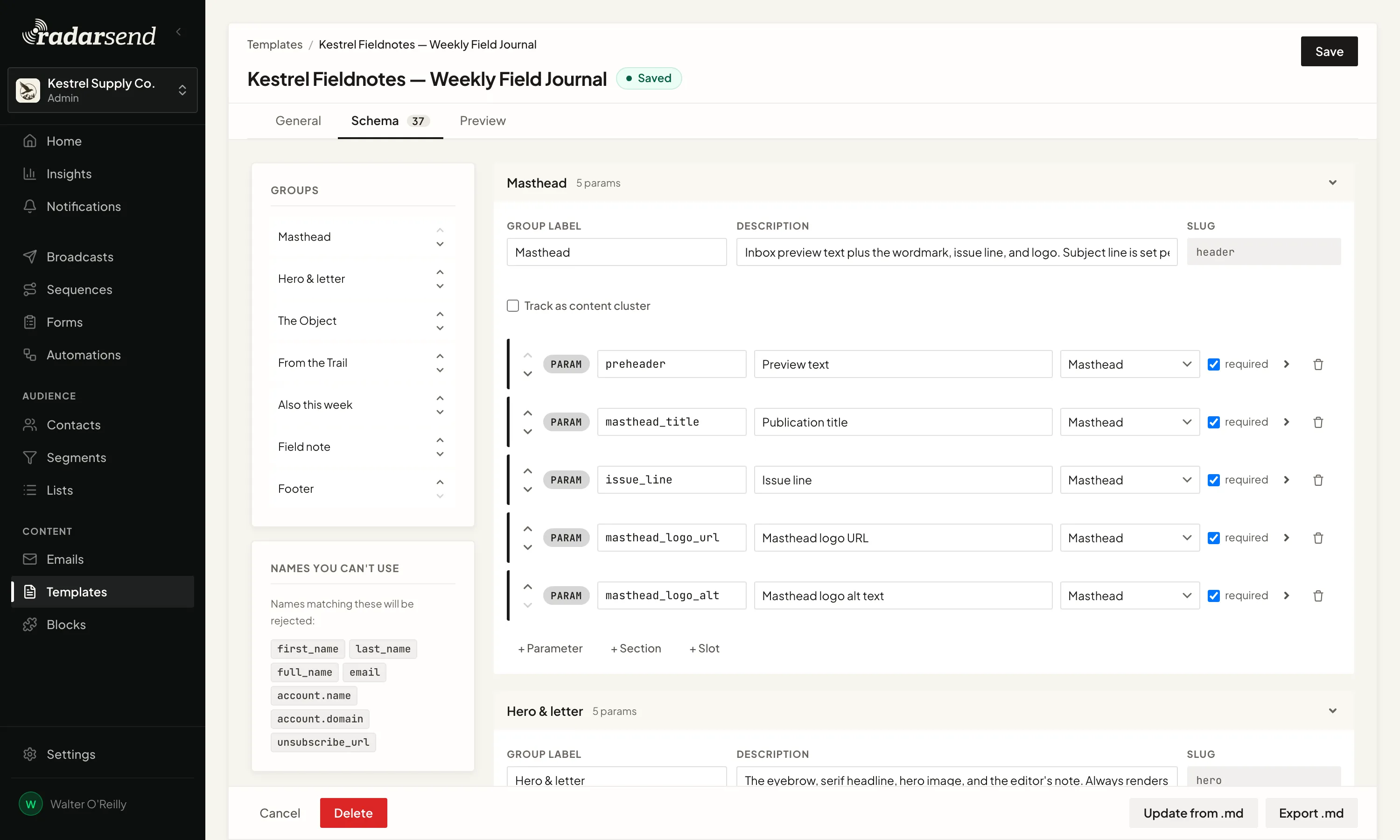
Anything you write a placeholder for has to be set up, and anything you set up should be used somewhere. The Schema tab is where that happens. Its label carries a count.
Let the linter do the work#
Under the content panel, the reference linter checks both directions:
- A placeholder in your markup that isn’t set up is an error, with Declare this → beside it. One click sets it up with a sensible label and type.
- Declare all (N) in its header sets up every missing one at once, when there’s more than one.
- Anything set up but never used is a warning, with a Remove button, so leftovers don’t pile up.
- When both directions are clean, it says Every placeholder in your markup is set up, and nothing set up is unused.
Writing the MJML first and letting the linter set the rest up is usually faster than doing it by hand.
Groups come first#
The Schema tab is an ordered list of group cards, such as Masthead, Body, and Footer, and every field, repeating section, and slot sits in one. Add groups with + Group, then add things to a group with + Parameter, + Section, and + Slot. Reorder groups in the Groups card in the sidebar.
A group has a Group label and an optional Description, both shown above its fields on the form. Its Slug is fixed once it’s created, and an empty group can be deleted.
Each group also has Track as content cluster. Turn it on and the group’s filled-in values are treated as one piece of content built around a destination link, so clicks can be credited to that content instead of only to a bare URL. The group needs a field that holds a link (a URL, link, or image+link field), and the toggle warns you if it doesn’t have one.
Parameters#
Each parameter row has a name (lowercase with underscores, starting with a letter), a label shown on the form, a group, and a required box. Open the row for the rest:
- Type — text, multiline, rich text, URL, link, image, image+link, boolean, enum, number, or date.
- Default — typed to match, so a number default is a number and a date gets a date picker.
- Choices — for enum only, each a stored value and a label. Add them with + Add option. An enum needs at least one.
- Help text — shown under the field on the form.
- Max length and Must match (a pattern) — for the text types.
Use the arrows beside a row to change its order within the group.
Some names belong to merge tags already. The Names you can’t use card in the sidebar lists them: first_name, last_name, full_name, email, account.name, account.domain, and unsubscribe_url. If a parameter takes one of those names, the editor warns you; rename it.
Repeating sections#
A section is a list of rows, and you decide which fields each row has, using the same types as parameters. Set up more_articles with headline, url, and summary, and the form shows a list of article rows that can be added, reordered, and removed.
A section also has Fewest rows and Most rows (up to 50), a Description, and a Row label: a short bit of text like {{item:headline}} that names each folded-up row on the form. Without one, rows read Item 1, Item 2. The row’s own fields go under Item schema.
Inside the section:
{{item:field}}prints one of the row’s fields. A bare{{field}}isn’t a row field; it stays a recipient merge tag, which is what you want for{{first_name}}.{{@first}},{{@last}}, and{{@index}}tell you where you are in the list. Wrap markup with{{#if @first}}…{{/if}}or{{#unless @last}}…{{/unless}}, for a divider under every row but the last, say.- Sections can’t go inside other sections.
Slots#
A slot says where a block can go. Its settings:
- Accepts — the slot keys a block needs to go in here. A block qualifies if it has any one of them. Leave it empty and any block qualifies. See Create a content block.
- Required — whether it can be left empty.
- Allowed strategies — which of One block, Rotate, By rule, and Nothing the sender can choose. At least one has to stay ticked.
- Default strategy — which one is selected when the form is first built. This list uses the stored names:
fixed(One block),random(Rotate),conditional(By rule), andempty(Nothing). They’re also how strategies appear in an exported file. - Help text — shown on the slot’s card.
Preview with sample values#
The Preview tab builds the email on the server, from the saved template, so save first. It fills each field with a Sample value worked out from the field’s type, and shows the result under Rendered output.
Two things it leaves out: merge tags stay as they are, and slots are left empty, because blocks are chosen when someone composes an email. To check a template with real content and blocks, compose a draft broadcast with it and send yourself a test.
Work in a file instead#
Templates export to a Markdown file and import back. For a large set of fields that’s often easier than the form, and it’s how you reach the few options the editor doesn’t show.
- Import .md on the Templates list creates a new template from a file. Paste it, drop it in, or click Choose file.
- Update from .md in the editor’s footer replaces the current template. It replaces rather than merges: a field missing from the file is removed. The template’s name, slug, and tags stay as they are, and if the file has no plain text, the current plain text is kept.
- Export .md downloads the current template in the same shape.
The file is a short header followed by ## headings, each holding one code block:
---
kind: template
name: Weekly Field Journal
slug: weekly-journal
format: mjml
---
## MJML
```html
<mjml>…</mjml>
```
## Plain text
```
…
```
## Parameters
```json
[ … ]
```
## Sections
```json
[ … ]
```
## Slots
```json
[ … ]
```
Headings are matched loosely, so ## Parameters schema (JSON) and ## MJML source both work. A ## Groups heading carries the group settings.
A few options live only in the file (and the API), not on the Schema tab:
| Option | What it does |
|---|---|
visible_when | Shows a field only when another field equals a value, is one of a set, or is turned on. A hidden field is never required. |
sample | An example value, shown to API users so they can see what’s expected. It’s documentation, not a default. |
content_role | Changes the name a field is given inside a content cluster. |
format | How a date field is written out, such as %B %d, %Y. |
collapsed_default | Whether a group starts folded up on the form. |
Convert an existing email with an AI assistant#
If your emails live on another platform, an AI assistant connected to RadarSend can turn one into a template for you. Give it the email’s HTML or MJML — the platform’s template export works best — and ask it to make a RadarSend template.
The connection gives the assistant a conversion guide and a checker. It decides what should be fillable, maps the old platform’s merge tags, writes the plain-text version, and checks its work against a screenshot of the result before saving. Expect it to ask for anything the export doesn’t contain, such as your postal address.
- Saving needs permission. When you connect, tick Also allow creating and changing templates on the consent screen — it’s off by default, and only an admin can grant it. Without it the assistant can still check its work but can’t save. If you connected before this existed, reconnect.
- Check the result. Open the new template’s Preview tab and compare it with the original before you send from it.
Change a template that’s in use#
The Usage card in the sidebar shows how many drafts and sent broadcasts use the template, so you can see what a change would touch.
Drafts that use it show a banner the next time someone opens them, offering to move to the latest version with a summary of what changed. See When the template changes.
Renaming a field is the costly change: whatever was typed into it is dropped. Changing its label, help text, or default costs nothing.
Delete a template#
Delete is in the editor’s footer. It only works while nothing uses the template: no draft, and no broadcast that has been scheduled or sent. The Usage card says Unused · safe to delete when that’s the case. Broadcasts already sent keep their content either way, because it was built into them when they went out.
Common issues#
- The Schema tab shows a problem. Your markup mentions something that isn’t set up. Use the linter under the content panel, and Declare all if there are several.
- “Undeclared section”. A
{{#section x}}with no section set up to match. Add it, or fix the spelling. - “Nested {{#section}} blocks are not supported.” Sections can’t contain sections. Flatten it, or move the inner list into a block.
- “Undeclared item field.” An
{{item:field}}that isn’t one of that section’s row fields. Add it to the section’s Item schema. - A name gets a warning. It matches a merge tag. Rename it.
- An enum won’t save. It needs at least one choice, and only enum fields can have them.
- Preview says to save first. It works from the saved template. Save, then preview.
- “Needs a destination field.” A group set to Track as content cluster has no URL, link, or image+link field. Add one or turn the setting off.
- The template doesn’t appear as a form when composing. It has nothing set up yet, so it’s listed under Raw templates instead. Give it at least one field, section, or slot.
- Delete is blocked. Drafts or broadcasts still use the template. Check the Usage card.
- “A parameter is always used whole”. You wrote something like
{{ param.hero.url }}. A field is placed as a whole value, so for an image address or a button link, set up a separate URL field. - “Section row fields take no sub-fields and no filters”. Use
{{item:field}}on its own —{{item:headline | upcase}}and{{item:image.url}}break the email.
Good to know#
- The subject isn’t part of the template. Whoever sends writes their own each time.
- Blocks pick up the template’s values. A block using
{{ param.brand_color }}gets the template’s value automatically; anything set on the block itself wins. See Create a content block. - Plain text is required on templates with fields, and optional on blocks.
- Templates work outside broadcasts too. The same form appears when you write an email in the Emails library, so a template can drive a sequence email.
- Everything here can be done over the API: read a template’s fields, check a set of values, build a preview, and create a broadcast, without touching MJML. See the template mode API guide.