A/B test a broadcast
An A/B test sends two or more versions of a broadcast to the same audience at the same time. Each recipient gets one version, picked at random according to the split you set. When the send finishes, the broadcast’s report compares the versions side by side and tells you whether one of them clearly won.
You can vary the Subject, the Body, the Sender, or any mix of the three.
Before you begin#
- A broadcast draft with an audience and a sender. See Create and send a broadcast.
- To test senders, at least two senders that are confirmed, not paused, and not still warming up. See Add and confirm a sender.
- An audience large enough to tell the versions apart. RadarSend won’t call a winner until each version has reached at least 1,000 recipients.
Turn on A/B mode#
- Open the broadcast and go to the Content step.
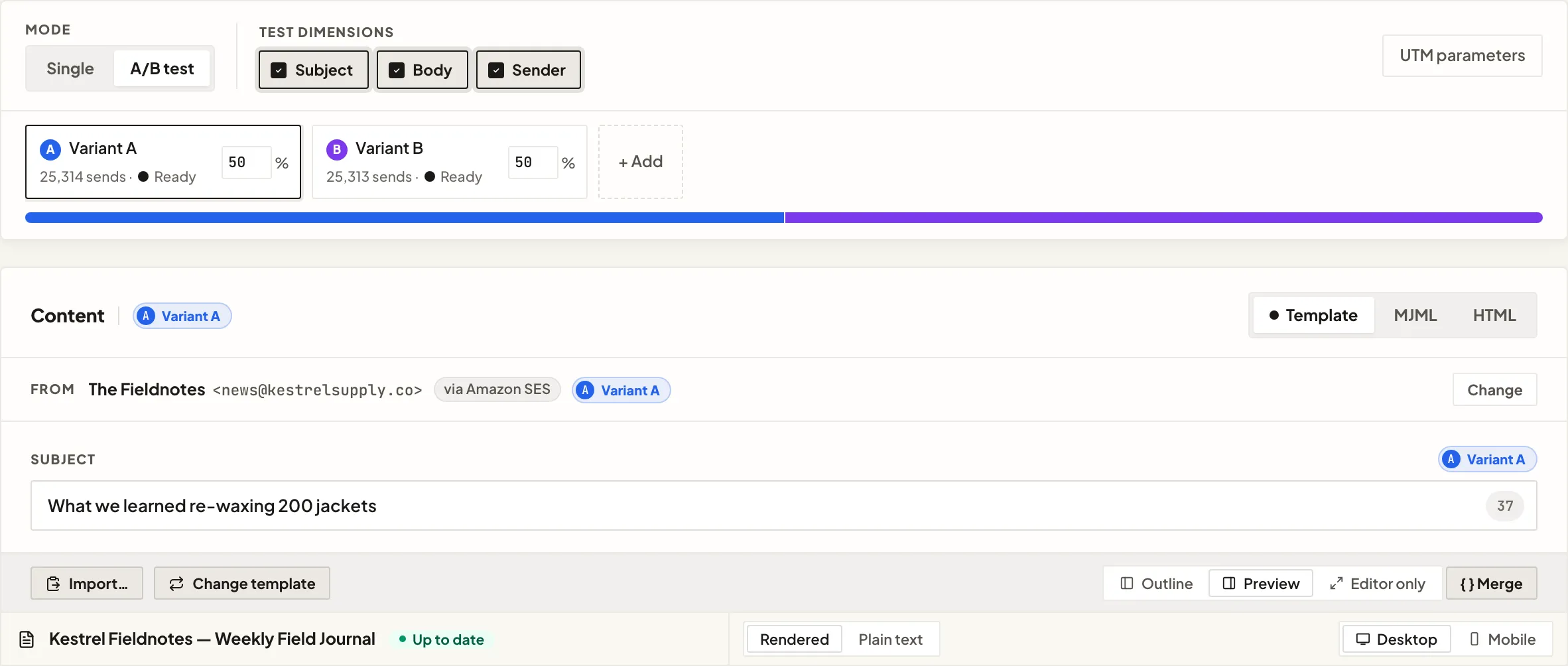
- Under Mode, switch from Single to A/B test.
RadarSend creates Variant A from what you’ve already written and a blank Variant B, split 50/50. Subject is switched on as the test dimension to start with.
Turning on A/B mode sets the delivery back to a single send. An A/B test goes out in one batch, so Spread out isn’t available for it (see Common issues).
Choose what to test#
Under Test dimensions, switch on the parts of the email that should differ between variants:
- Subject — each variant gets its own subject line.
- Body — each variant gets its own content. In template format, each variant has its own copy of the template form. Editing a variant’s body switches Body on for you.
- Sender — each variant sends from a different sender. See Test senders.
Anything you leave off is shared by every variant. At least one dimension has to stay on.
Set up your variants#
The variants row shows one chip per variant, with its name, how many recipients it will get, and whether it’s Ready or still has fields to fill in. Click a chip to edit that variant. The Content card, the From row, and the Subject field show a label for the variant you’re editing.
- Add a variant — click + Add. New variants are named Variant C, Variant D, and so on, and the split resets to even. You can have up to 6 variants.
- Remove a variant — click the × on its chip. You need at least 2, so the × only appears when there are more.
- Rename a variant — double-click its name (or press F2), type, and press Enter. Names can be up to 40 characters.
- Change the split — type a percentage in a variant’s box, from 1 to 99. The other variants adjust so the total stays at 100%. Split evenly puts them back to equal shares.
Test senders#
Switch on Sender to find out whether the from-address or the sending service makes a difference. Each variant then needs its own sender:
- On the From row, click Choose sender (or Change) for the variant you’re editing.
- In the Senders dialog, pick the sender for that variant and click Done.
A sender can only be used by one variant. Picking one that’s already in use moves it to the variant you’re editing.
Only senders that are established, confirmed, and not paused can be used. If a sender can’t be picked, the dialog says why, for example Still building reputation for a sender that’s still warming up.
If your senders differ in both address and sending service, the dialog warns you that the result can only tell you which combination won, not which of the two made the difference. That’s allowed, but if you want to isolate one, keep the other the same.
The Sender dimension is greyed out in two cases. Hover over Why Sender is unavailable to see which applies:
- You don’t have at least two eligible senders.
- The email type is set to keep sending from a backup domain when its primary is paused. A sender test can’t run on that routing policy; change it to block.
Choosing a sender per variant is available in the app only, not through the API.
Review and schedule#
On the Review & Schedule step, the content summary shows which dimensions you’re testing, for example A/B · Subject + Body, with a Preview link for each variant. Send a test and schedule the broadcast as usual. See Create and send a broadcast.
To go back to a normal send, switch Mode to Single. If more than one variant has content, RadarSend asks which one to keep. Click Keep this on that variant; the others are discarded.
Read the results#
When the broadcast has finished sending, its report shows a Test results card with one panel per variant:
- The variant’s share of the audience and how many recipients it went to.
- Its subject, if subjects differ, and its sender, if you tested senders.
- Open, Click, and Bounce rates. A sender test also shows Delivered and Unsub.
- Under each rate, the apparent figure: the number before bot filtering, which is what most other tools report.
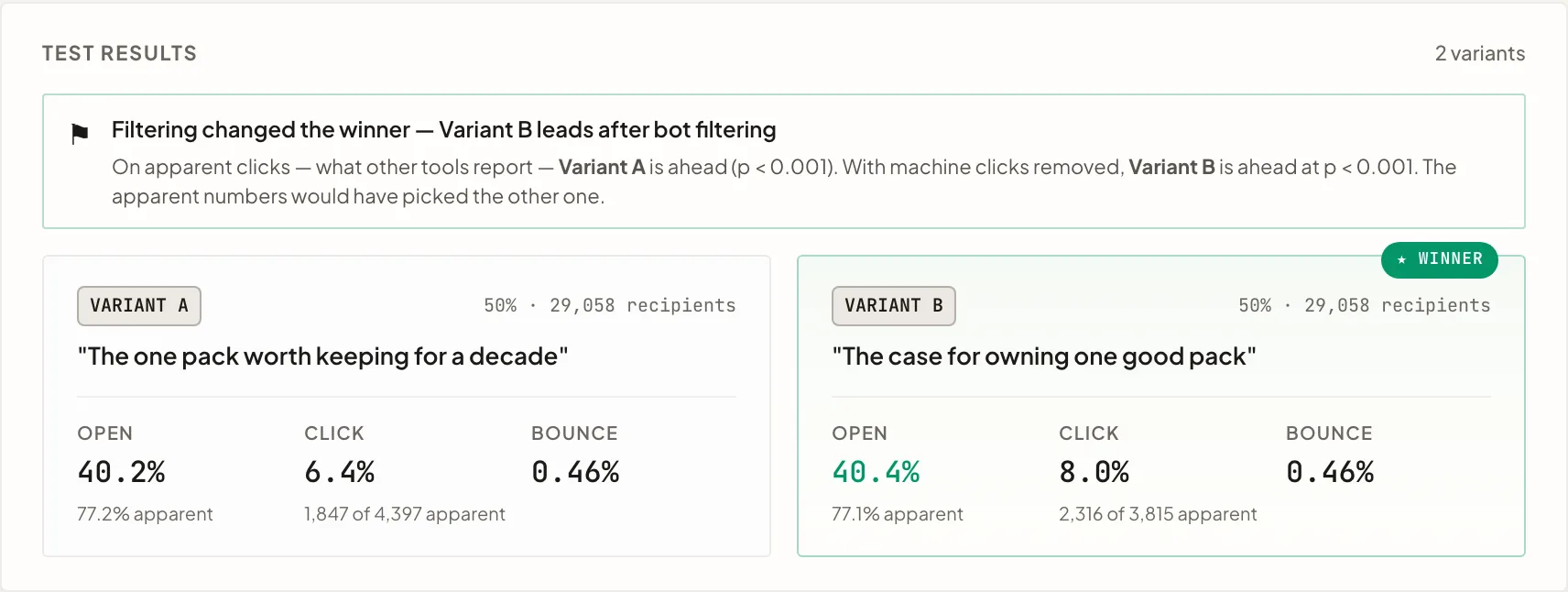
RadarSend decides the test on filtered clicks: clicks with security scanners and other machine clicks removed. When the difference is statistically significant, the winning panel is marked ★ winner and a note above the panels says so. The note also shows the same test run on apparent clicks. When the two disagree, it reads Filtering changed the winner. That happens when scanner clicks make the wrong variant look better.
If clicks don’t settle it, the card falls back to open rates and shows one of these:
| Verdict | What it means |
|---|---|
| Statistically significant winner | One variant’s open rate is ahead at 95% confidence. |
| No clear winner | Each variant has enough recipients, but the difference could be chance. |
| Need more data | At least one variant has fewer than 1,000 recipients. |
| Verdict withheld | Some recipients weren’t assigned to a variant, so the split isn’t a fair random one. |
For the first few hours after a send, the card may say Provisional — a winner can still flip as engagement settles. Bot filtering is still sorting the early opens and clicks, and the verdict waits until it’s done. See How open & click tracking works.
Common issues#
- Spread out is greyed out. An A/B test sends in one batch, so it can’t be spread across days. Switch Mode back to Single to spread the send.
- “This A/B test is … recipients but today’s sending limit is …” The audience is bigger than your senders can send today. Shrink the audience, or turn off A/B to spread the send over several days.
- Continue is greyed out. Every variant needs whatever you’re testing: its own subject with Subject on, its own content with Body on, and its own sender with Sender on. The footer names the first variant with work left, for example Variant B: 3 to finish. Click it to jump there.
- “Pick a sender for every variant, or turn the Sender test dimension off.” A variant has no sender. Choose one on its From row.
- “Two variants can’t share the same sender.” A sender test needs a different sender for each variant. To send every variant from the same sender, turn Sender off.
- The Test results card doesn’t appear. It shows up once the broadcast has finished sending, not while it’s Sending or Paused.
Good to know#
- Every variant goes to its share of the full audience. There’s no test group and no automatic winner send. The report tells you which version won so you can use it next time.
- Recipients are assigned at random. RadarSend shuffles the audience and deals it out by your percentages, so each variant gets a fair sample.
- Several senders without a sender test. If Sender is off and you picked more than one sender, every variant uses the same mix. The report then shows a separate Sender split card, which is for reference only. It has no verdict, because the senders weren’t tested fairly against each other.
- Template broadcasts. With Body on, each variant has its own copy of the template form with its own field values. See Compose an email from a template.