Use static lists
A list is a group of contacts you pick by hand. People join when you, a form, a sequence, or an Automation add them, and they stay until someone removes them. Nothing about the contact has to be true for them to stay on it.
Lists or segments?#
Both work as a broadcast audience and in sequences. The difference is how people get in.
- A segment is built from rules, like “Customer stage, opened in the last 30 days”. RadarSend works out who matches, so contacts join and leave as their data changes.
- A list has no rules. It’s exactly the people who were added. Use one when membership is a decision rather than a condition: webinar registrants, a beta group, people your sales team hand-picked, or everyone who asked for a price sheet.
Lists also react faster. When a contact is added to or removed from a list, triggers fire right away. Segment triggers wait for the next check, about every 5 minutes.
A list can’t be turned into a segment, or a segment into a list.
Before you begin#
- Have some contacts in your workspace. See Import and manage contacts.
Create a list#
- In the main sidebar, under Audience, click Lists.
- Click New List.
- Enter a List Name, for example
VIP Customers, and click Create List.
The list opens, empty and ready for contacts. You can also create a list on the spot while adding contacts to one from the Contacts page or a contact’s page.
Add contacts#
There are several ways in. Each adds contacts who aren’t on the list yet and leaves existing members alone.
From the list#
- On the list’s page, click Add Contacts in the Manage members card.
- Search by email or name and click Search.
- Tick the contacts you want and click Add … Contacts.
Each search shows up to 25 matches. To add a lot of people at once, use the Contacts page instead.
From the Contacts page#
- In Contacts, filter the list down to the people you want, and tick them.
- Click List in the bar that appears.
- In Add to List, click an existing list, or type a name under Or create a new list: and click Create & Add.
You can also add a single contact from its row menu, with Add to list.
From a contact’s page#
Open the contact, then choose Add to list from the … menu at the top (or press L). Pick the Existing list, or click + Create new list, then click Add.
The contact’s lists are shown in the Lists cell near the top of their page.
Automatically#
- Forms — in the form editor, under On submit, use Add to lists to add everyone who submits. See Create and embed a form.
- Sequences — an Action step set to Add to list or Remove from list. See Sequence steps.
- Automations — the Add to list action. See Automate with rules.
- The API —
POST /api/segments/{id}/membersadds up to 1,000 contacts per call. See Segments and lists in the API reference.
Remove contacts#
On the list’s page, in Manage members:
- Click the × at the end of a row to remove that contact, or
- Tick several contacts and click Remove from list.
Removing a contact from a list doesn’t change the contact in any other way.
Use a list#
- Send a broadcast to it. In the broadcast’s Audience card, add the list under Include, or under Exclude to hold its members back. Lists are marked
(list)in the picker. See Create and send a broadcast. - Start a sequence from it. Use the Added to a list or Removed from a list entry trigger. See Choose an entry trigger.
- Enroll everyone on it. On a sequence’s Enrollments tab, click Enroll contacts and choose Everyone in a list or segment. See Track a sequence.
- Branch or wait on it. A sequence condition can check whether a contact is in a list, and a wait can hold until they’re added to or removed from one.
- Filter on it. In a segment or on the Contacts page, the List membership filter (under Segment/List Membership) matches people who are, or aren’t, on the lists you choose. This is how you build a segment such as “on the VIP list and opened in the last 30 days”.
Read the list page#
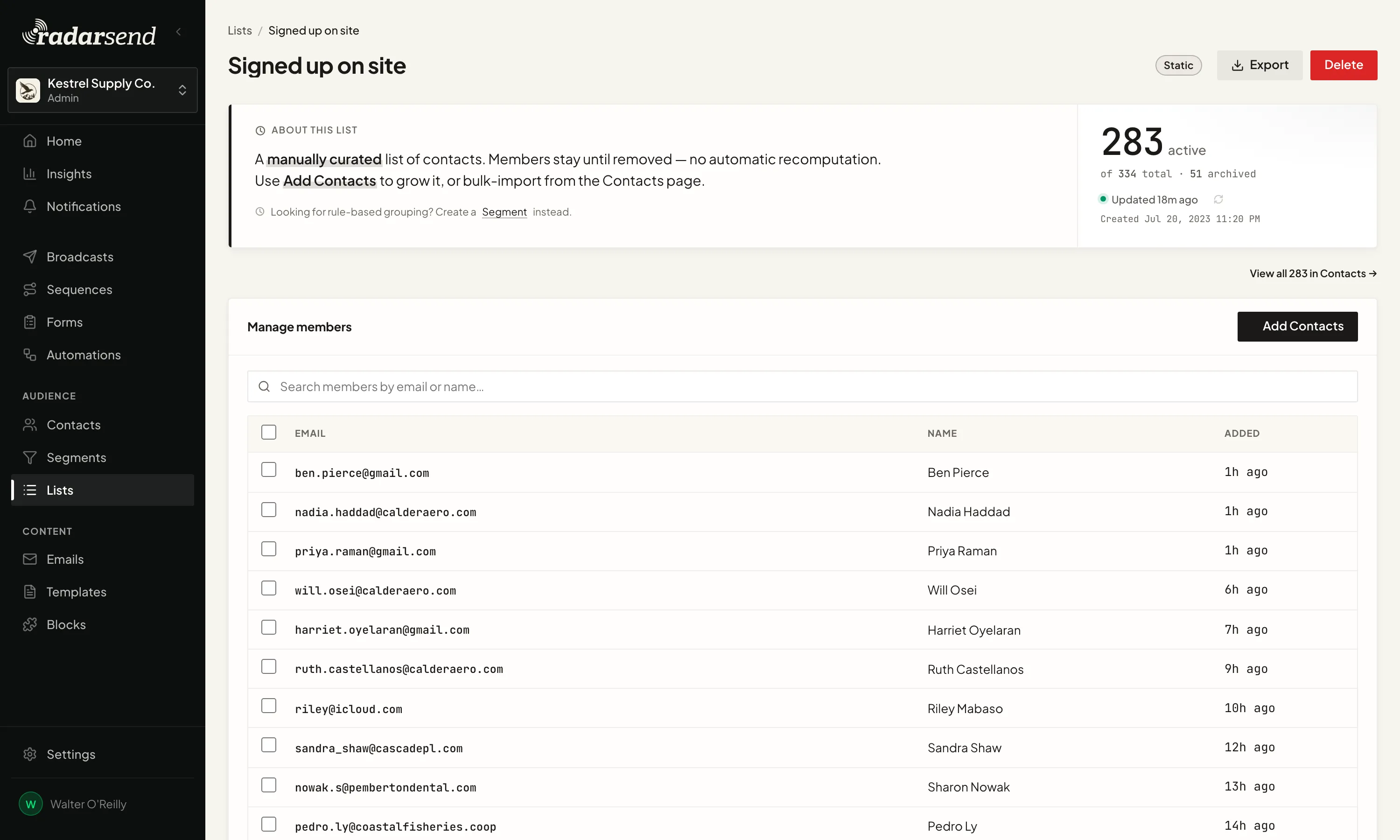
The About this list card shows how many members are active, meaning RadarSend can send to them, and how many are archived: members who have unsubscribed, bounced, complained, or been marked Do Not Contact. Archived members stay on the list but are skipped when you send. Click the refresh icon to recount, or View all … in Contacts to see every member on the Contacts page.
The Manage members card lists everyone on the list, 50 to a page, with the date each was Added. Search it by email or name.
Rename, export, or delete a list#
- Rename — click the list’s name at the top of its page, type the new name, and click away.
- Export — click Export. The Contacts page opens filtered to this list; click Export there to download it. See Export contacts.
- Delete — click Delete and confirm. The list and its memberships are gone, but the contacts themselves aren’t touched.
A list that’s still in use can’t be deleted. RadarSend checks first, and if anything depends on the list it names each one instead of deleting:
- broadcasts that haven’t finished sending (draft, scheduled, sending, or paused) and include or exclude it
- sequences, other than archived ones, that start from it, add or remove contacts from it, or check or wait on it
- Automations that trigger on it or add contacts to it
- forms, other than archived ones, that add submitters to it
- segments built on it
Remove the list from each of those, then delete it. Finished broadcasts and archived sequences and forms don’t hold a list.
Common issues#
- I can’t find my list on the Segments page. Lists have their own page under Audience→Lists. The Segments page shows rule-based segments only.
- The active count is lower than the number of members. Some members can’t be emailed, for example because they unsubscribed or bounced. They’re counted as archived.
- My import didn’t add anyone to a list. Imports can’t add to a list directly. Use Tag this import to stamp the imported contacts with a custom field value, then filter on that value in Contacts and add them to the list, or build a segment on it instead. See Import and manage contacts.
- Search in Add Contacts didn’t find everyone. It shows up to 25 matches per search. Narrow the search, or add contacts from the Contacts page.
- A sequence or Automation won’t add contacts to a segment. Only lists can have contacts added or removed, so only lists are offered. A segment’s members come from its rules. A step or rule saved against a segment before that is flagged in its editor; pick a list.
- “This list is still in use.” Something still depends on the list. The message names each one; remove the list from them, then delete it again.
Good to know#
- Lists never update on their own. A contact who stops matching what you had in mind stays on the list until someone removes them.
- Deleting a contact removes it from every list.
- A contact can be on any number of lists.
- List triggers are instant. For the fastest reaction to a change, add contacts to a list and trigger on that.