Know more than an email address.
Segment on what people do.
Bring in what you know about your contacts, keep their stages, scores, and recent activity with them, and build segments that update as people act.
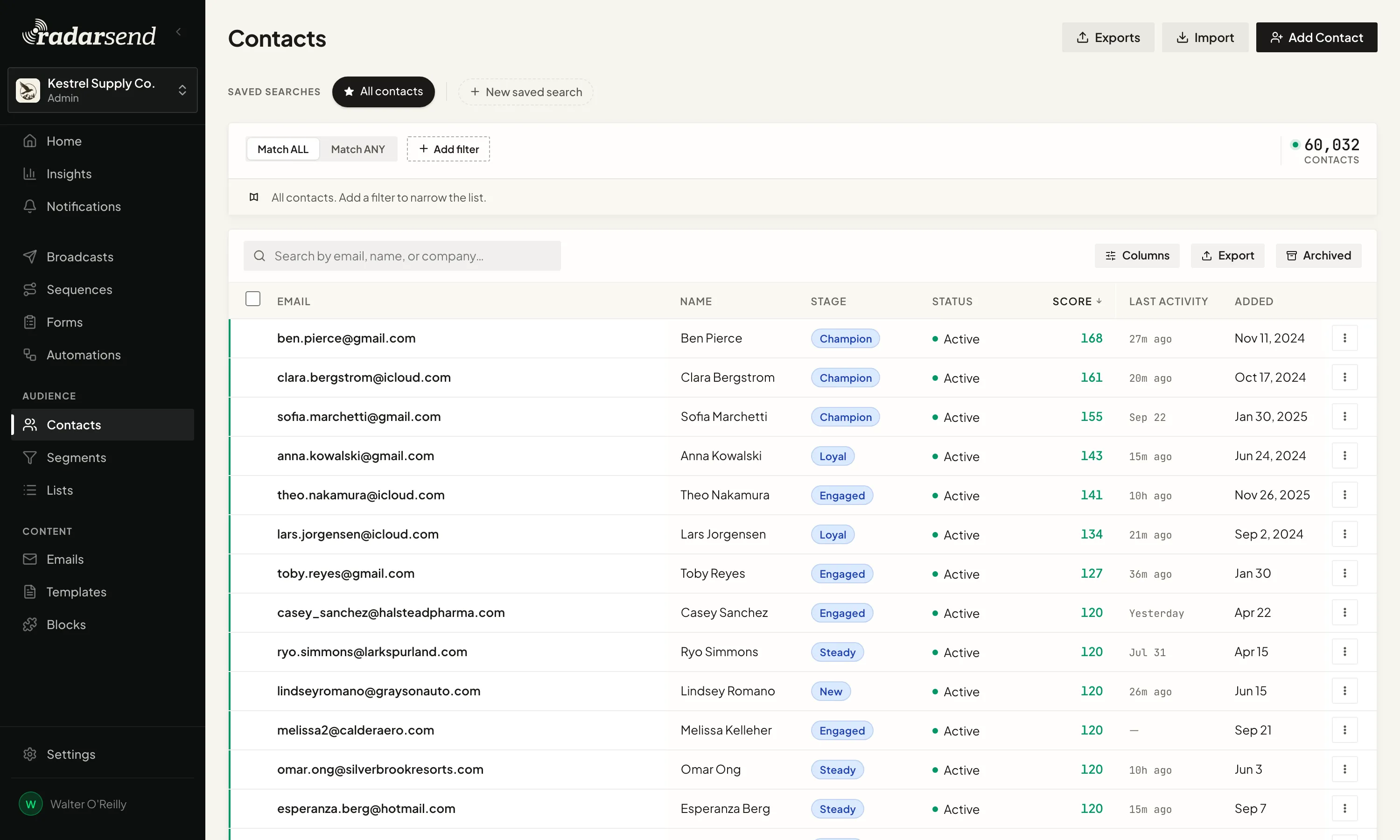
Your CRM and other business systems can stay where they are. RadarSend keeps the details it needs to decide who should get which email.
Import a spreadsheet, and RadarSend works out what's in it.
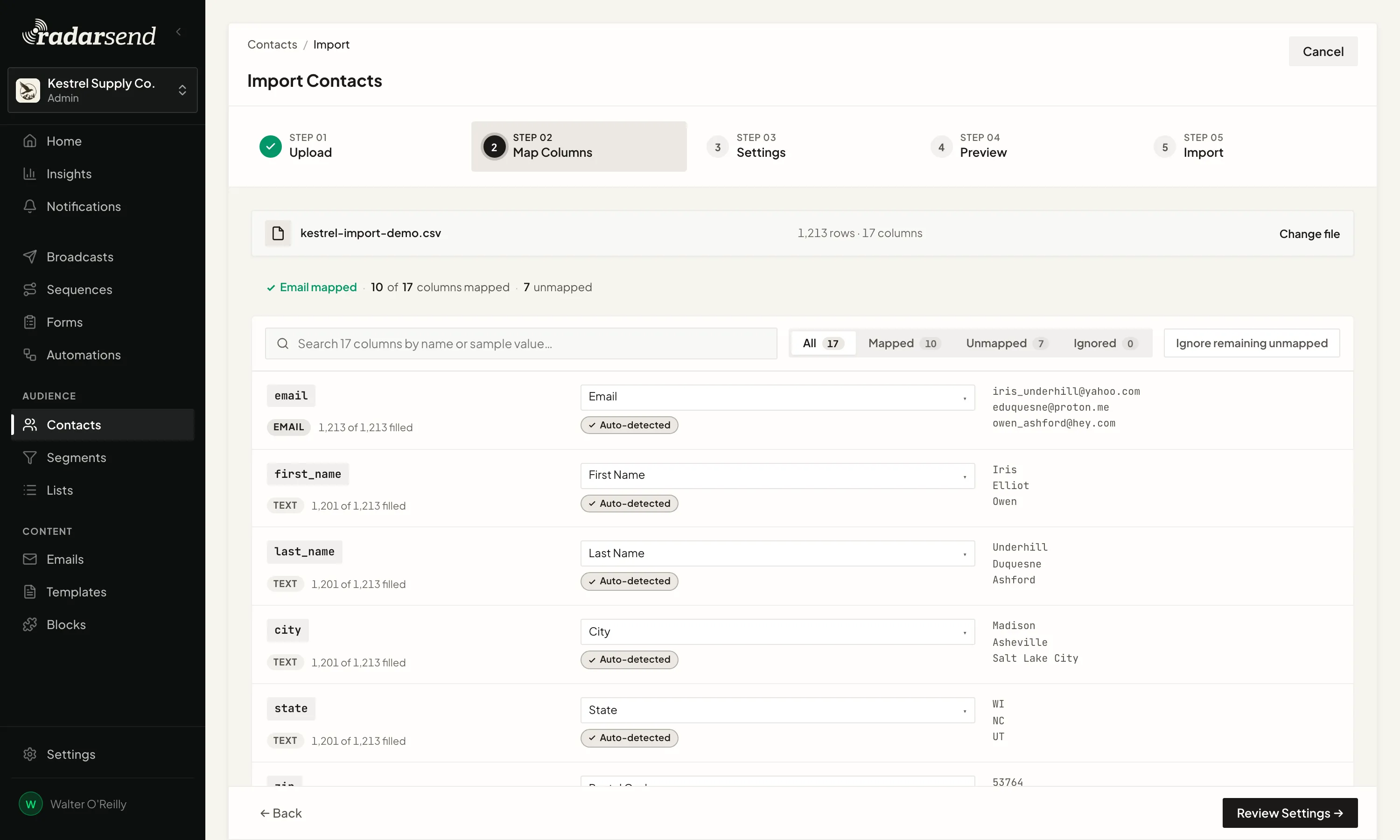
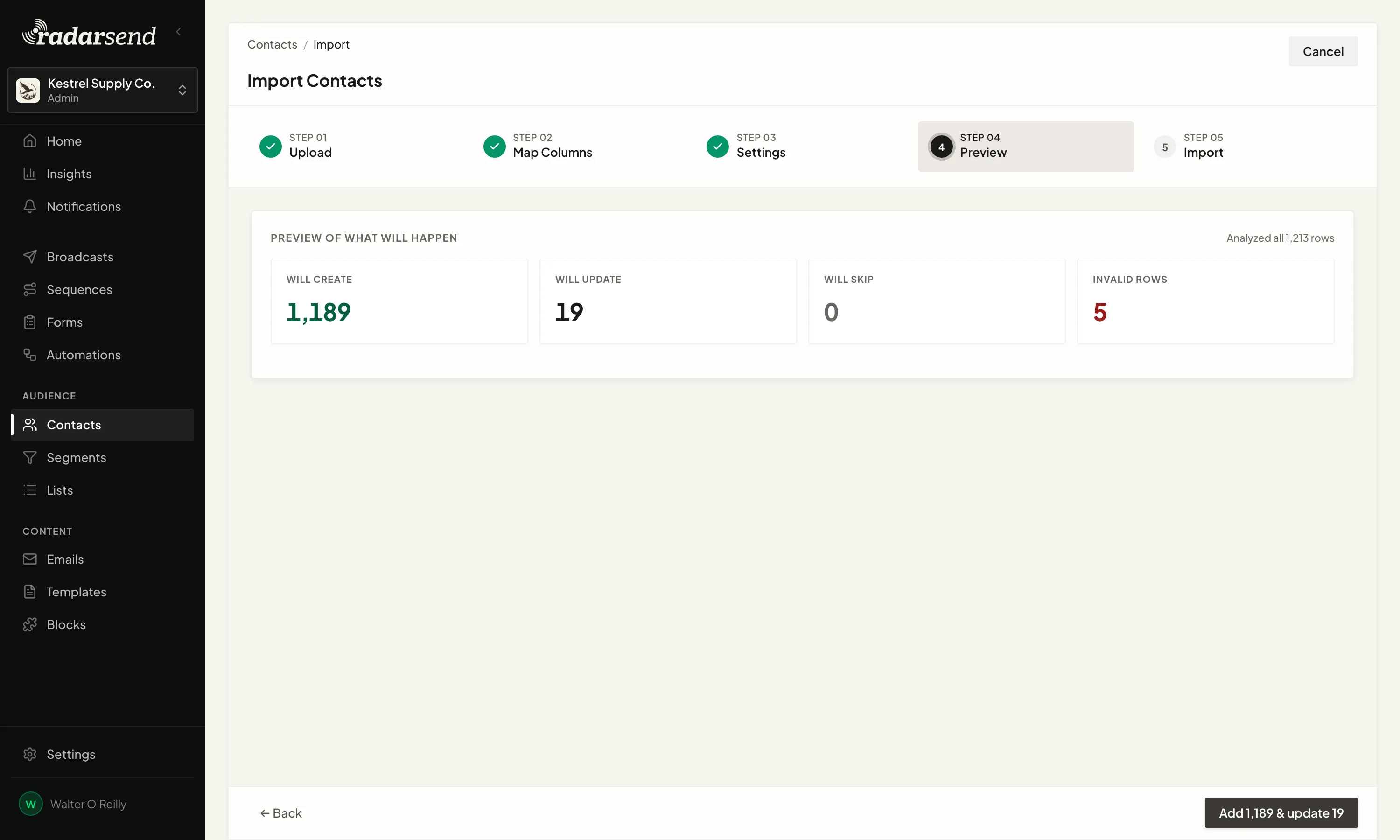
A suppression list comes in the same way, and contacts also arrive through RadarSend forms, the API, and the tools you connect.
Custom fields that know what they hold.
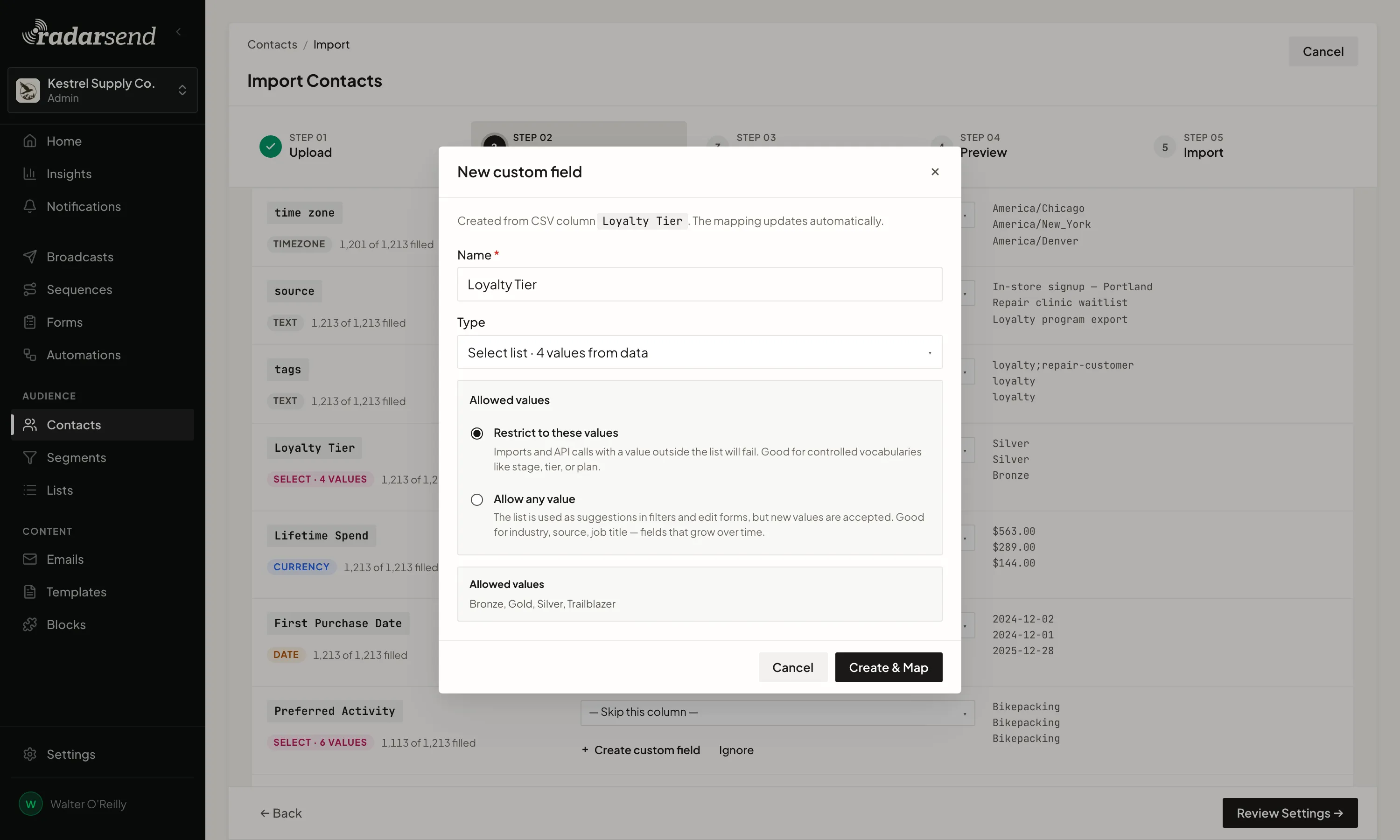
A custom field isn't a text box. Each one has a type, so a renewal date is a date and a lifetime value is an amount in dollars. A select list holds a set of choices, like the industries you sell to, and can turn away anything else, so a typo in an import doesn't invent a new industry.
- Text
- Number
- Currency
- Yes / No
- Date / Time
- Select list
- Tags
- URL
- Time of day
- Timezone
- Country
- Contact link
- SegmentsFind everyone whose lifetime value is over $500, or whose renewal date is before October 1.
- SequencesStart a sequence when a renewal date arrives or a plan changes, and branch on the plan or an amount.
- EmailsPut any field into an email, with dates written out the way you want them read.
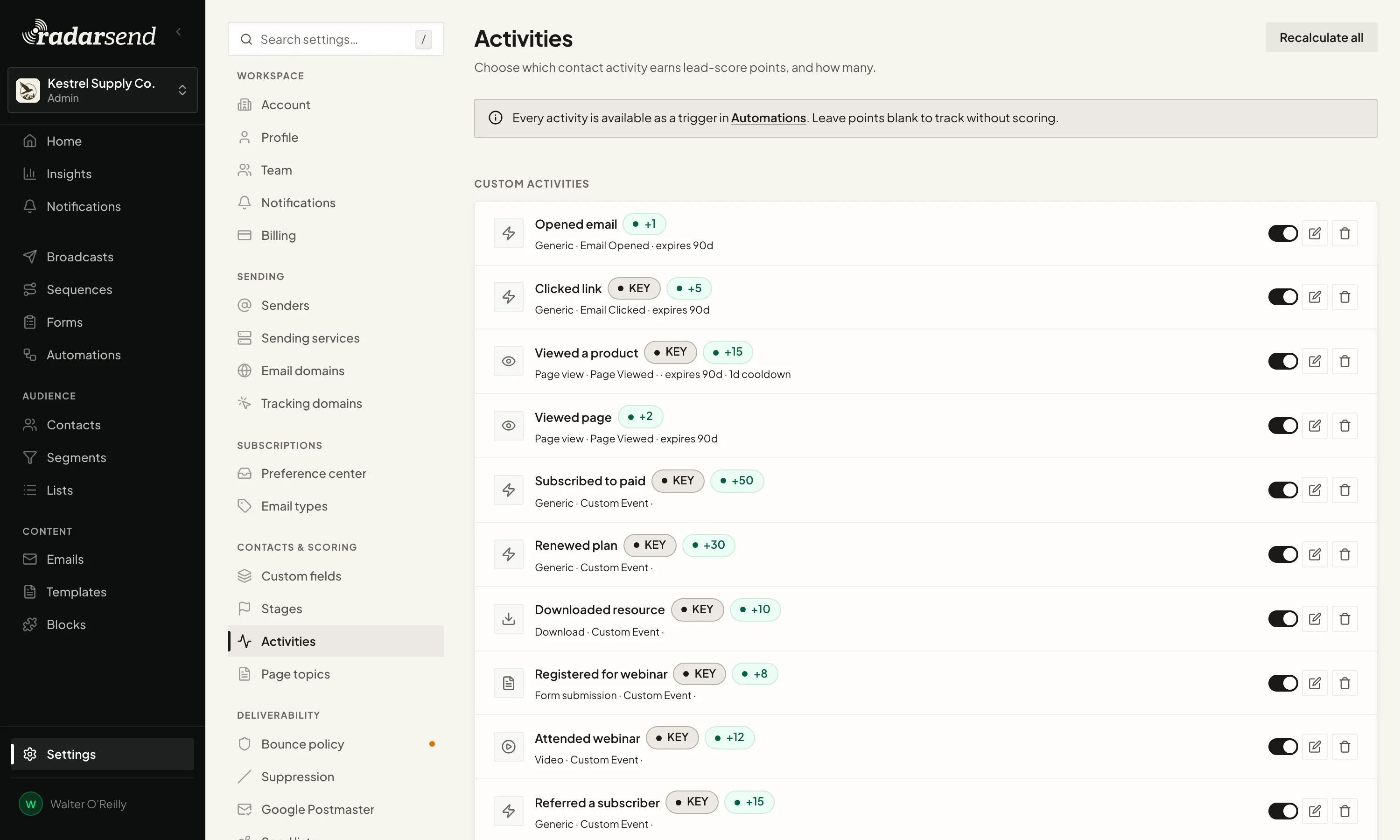
Track the activities that matter to you.
Tell RadarSend which activities matter to your business, like a demo request, a webinar signup, a download, or a renewal. They can come from your own systems through the API, from your site through the tracking snippet, or from WordPress, where the RadarSend plugin brings in signups, logins, and WooCommerce purchases, renewals, and cancellations.
Each one lands on the contact's timeline. Keep it as a record, or give it points toward a prospect or customer score. Points expire, so interest from last year doesn't look like interest today. Any activity can also start an automation or a sequence.
Build segments that stay current.
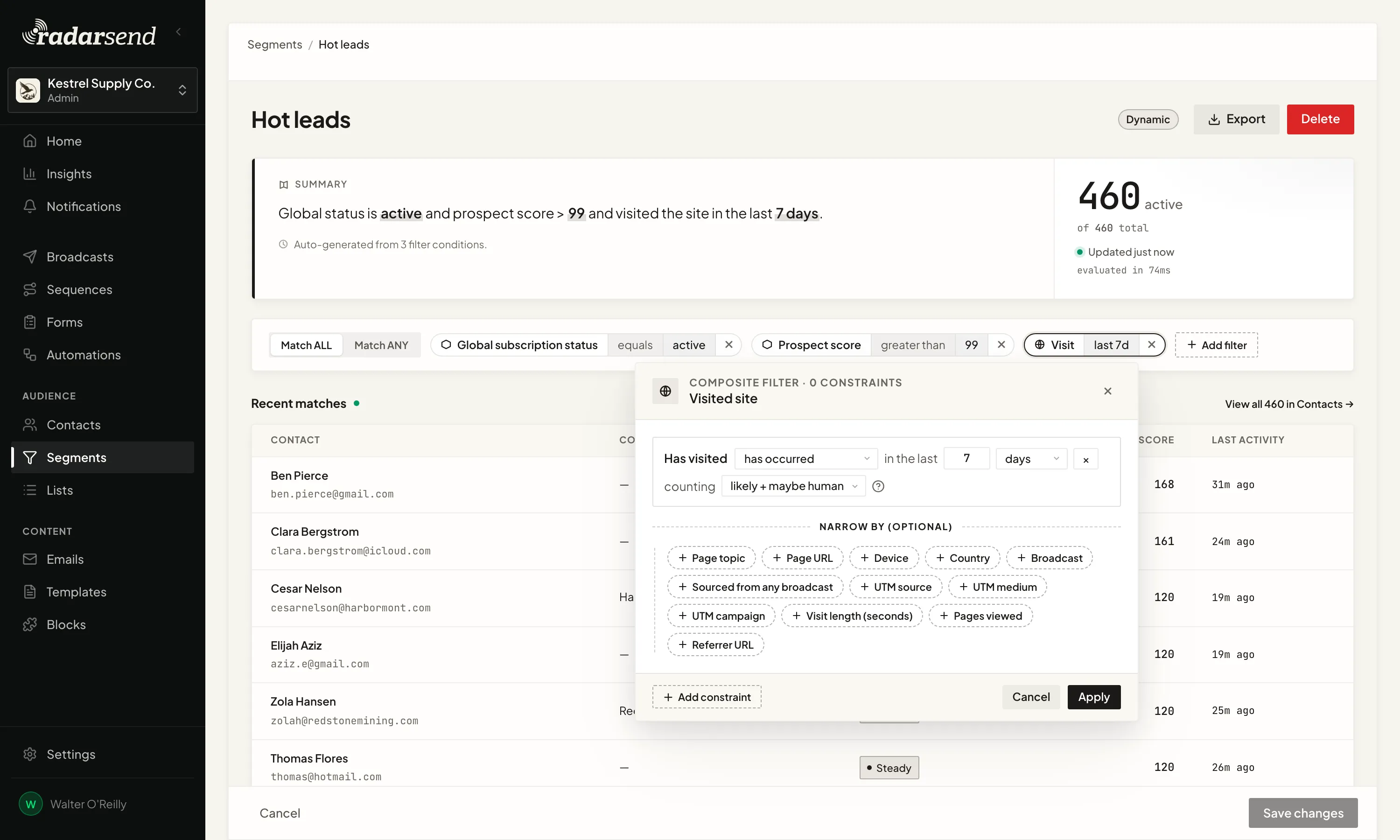
Use any contact field, subscription, stage, score, email activity, website visit, or custom activity as a rule. Combine as many as you need, and you'll see a plain-English summary and how many contacts match before you save.
For example, everyone with a prospect score over 99 who visited your site in the last seven days. You can narrow the visit by page, source, device, country, time on site, or whether it followed a broadcast.
Segments update as people act, so there's no list to export and rebuild before each send. Bot and scanner activity is filtered out first, so a security scanner's click doesn't put anyone in your hot leads.