Track a sequence & manage enrollments
Once a sequence is live, its tabs tell you how it’s doing and let you act on individual contacts. Every sequence has five: Builder, Report, Enrollments, Review, and Settings.
The Report tab#
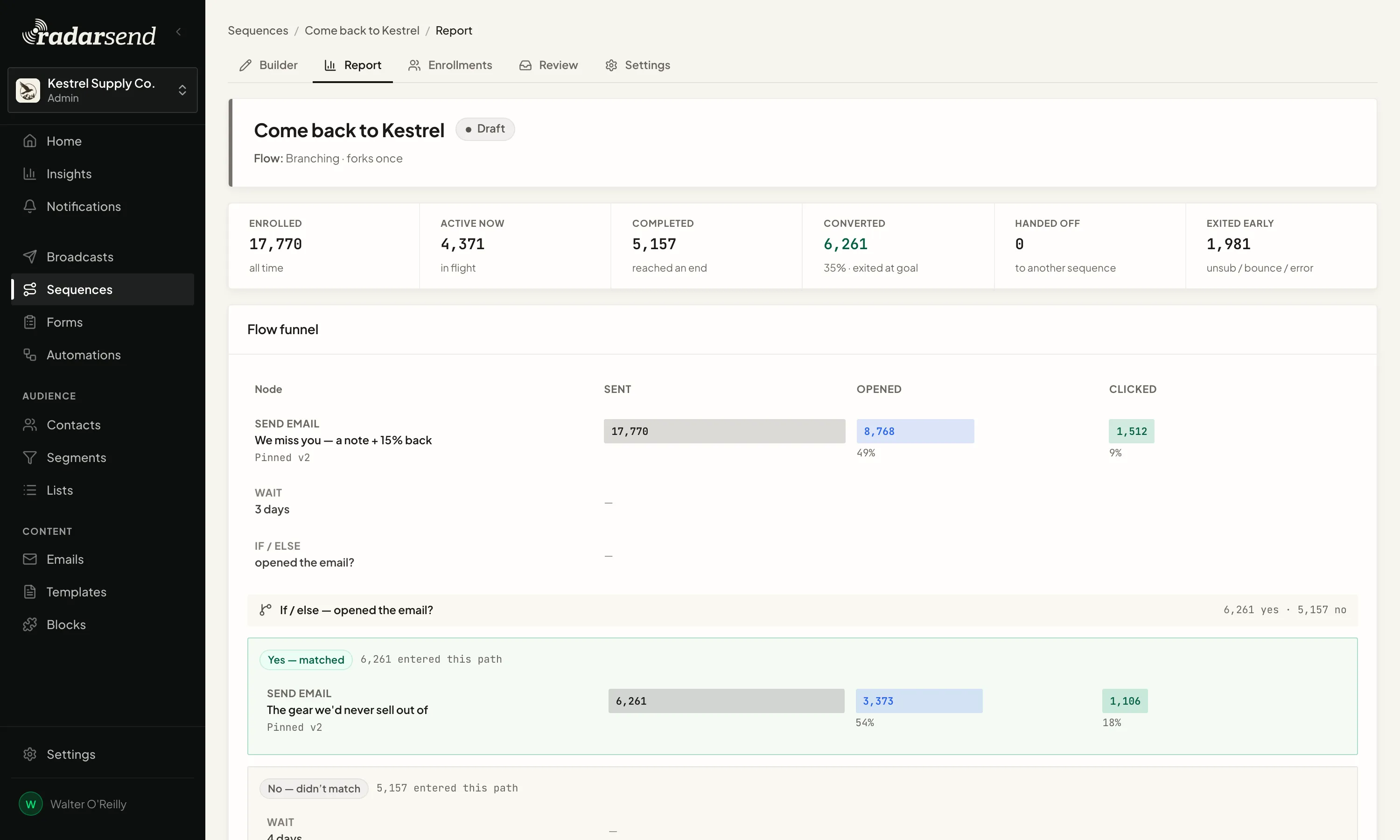
The numbers at the top#
Every figure on the report counts from the day the sequence started. There’s no date filter yet.
| Tile | What it counts |
|---|---|
| Enrolled | Everyone who has ever entered |
| Active now | Contacts moving through it right now |
| Completed | Contacts who reached the end of a path |
| Converted | Contacts who met the conversion goal or reached an Exit / goal step, with the rate |
| Handed off | Contacts who moved on through a Go to sequence step |
| Exited early | Contacts who left for another reason, such as an unsubscribe, a bounce, or an error |
| Paused | Contacts frozen in place. This tile only appears when there are some. |
Flow funnel#
Every Send email step gets a Sent, Opened, and Clicked bar. The open and click percentages are measured against that step’s own sends, so you can see where a sequence loses people. Waits and conditions appear as context rows with a dash, since they don’t send anything.
If the sequence forks, each path gets its own column, labeled Yes — matched and No — didn’t match, or Event — occurred and Timeout — didn’t occur, with how many contacts took it.
When a path ends in a handoff, the report links to the sequence it hands off to. Numbers from that point live on that sequence’s report.
Where enrolled contacts are now#
A stacked bar shows where everyone is right now: how many contacts are at each step, and how many finished each way. Exited early is broken down by reason, so you can tell unsubscribes from bounces. A contact caught moving from one step to the next shows as Between nodes for a moment.
This is the view to check if people seem to be piling up at one step.
The Enrollments tab#
A list of everyone in the sequence, 50 to a page, with status tabs: All, Active, Completed, Exited, and Paused. The columns are Contact, Outcome, Current node, and Entered. Rows for people who left show the reason under their outcome.
To see what one person is getting from you, use Find a contact’s enrollments. It searches by email across all your sequences, not just this one.
One contact’s route#
Click a row to open that enrollment:
- The header shows the contact, their outcome, when they entered and left, and the Reason they left.
- Up next shows the step they’re heading to. For a contact in a Wait for event, the card is Waiting for event and shows until when.
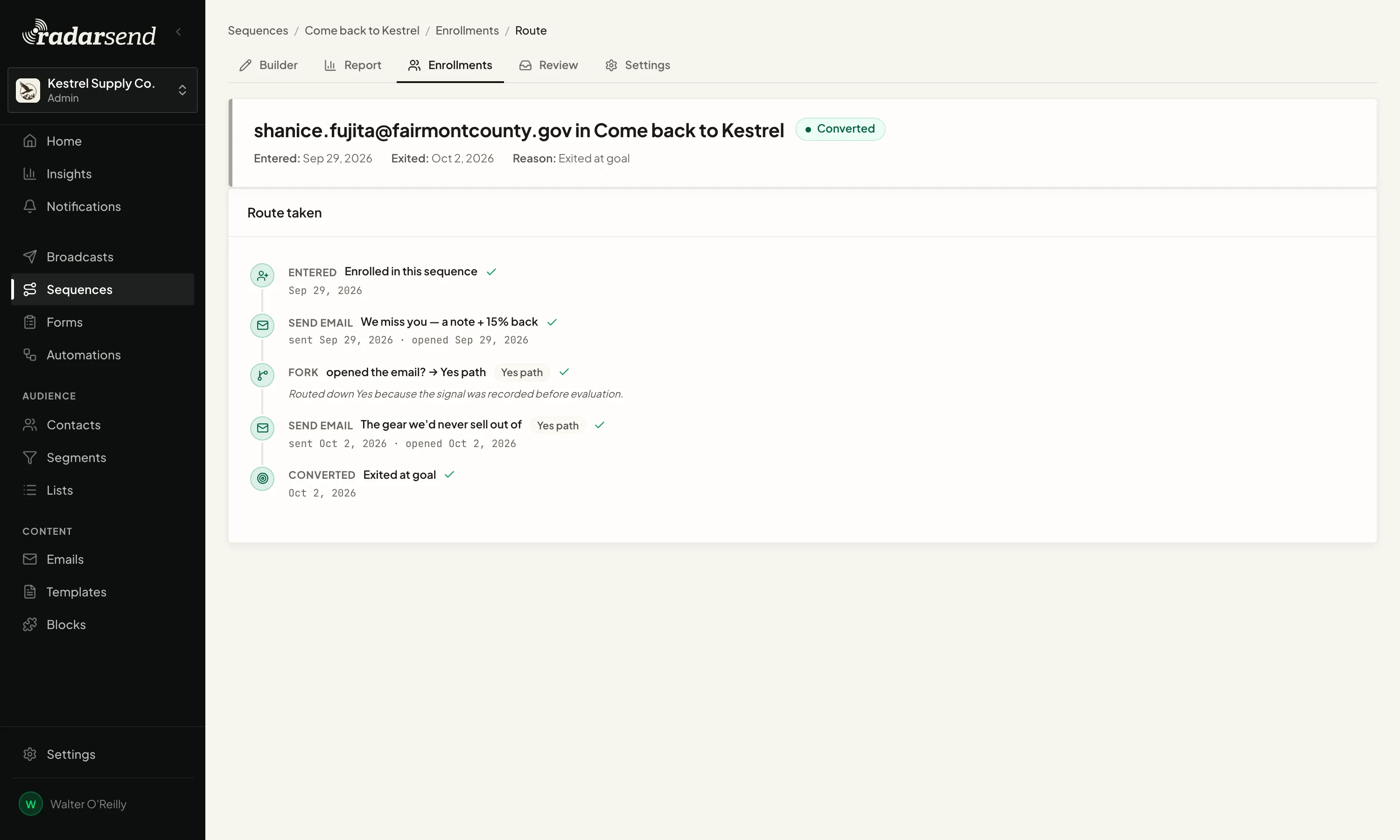
- Route taken is a timeline of their path through the sequence: when they entered, each email with its sent, opened, and clicked times, each fork and why they went the way they did, and how it ended.
At a fork, the timeline says why in plain words, for example Routed down Yes because the signal was recorded before evaluation.
Acting on one enrollment#
For a contact who’s still in the sequence:
- Send now (in the Up next card) releases the next email instead of waiting out the current delay. It goes out on the next pass, within about a minute.
- Skip wait (Timeout path) (in the Waiting for event card) stops waiting and sends them down the Timeout path.
- Pause enrollment holds this one contact in place. Nothing sends to them until you click Resume enrollment. The rest of the sequence carries on.
- Remove from sequence takes them out for good. They get nothing further, and this can’t be undone.
Enrollments that have already ended have no actions.
Enroll contacts by hand#
Click Enroll contacts on the Enrollments tab, then choose who:
- Everyone in a list or segment — everyone currently in it, up to 5,000 people a run. The sequence’s re-entry policy still applies.
- Specific contacts (emails or ids) — paste addresses, separated by commas or new lines.
Click Enroll. You’ll see a summary such as Enrolled 12, 3 already enrolled, 1 skipped. Addresses that don’t match a contact are counted as skipped.
The sequence has to be Active. On a paused sequence the button is still there, but everyone is skipped.
To reach people who already finished the sequence, use Back-fill a step instead. See Edit a live sequence.
Run a test#
Test run on the Enrollments tab sends one contact through the live sequence, so you can see the real emails arrive. Enter a Contact (your own address is best) and, if you like, a Start at step to skip ahead. Test enrollments carry a Test badge everywhere.
A test run is real. It sends real email, and every other step runs for real too: actions can change lists, update fields, call webhooks, or unsubscribe the contact. It also counts in the report, and in an Enters once sequence it uses up that contact’s one entry. To rehearse without sending anything, use Preview in the builder.
Hold emails for review#
For a new sequence, you can approve each email by hand before it sends. On the Settings tab, set Send review to Hold for review.
Every email the sequence is about to send then waits on the Review tab until you Approve or Cancel it. An approved email sends within about a minute. Emails nobody decides on are canceled after 14 days.
- Timers keep running while an email waits. Approving late can bunch steps together, and branches that check for opens or clicks decide from what had happened before you approved.
- Only emails are held. Action steps still run as the contact reaches them.
- Turning review off releases nothing by itself. Emails already held stay in the queue until you decide on them.
Common issues#
- The report is empty. Nobody has enrolled yet. Check the sequence is Active and that its entry trigger matches real contacts.
- Contacts are stuck and nothing is sending. Only an Active sequence sends. If it’s Paused, click Resume. If it’s Archived, unarchive it (it returns to Draft) and Activate it again. Contacts continue from where they stopped.
- Nothing sends, but the sequence is active. Check the Review tab; the sequence may be set to Hold for review.
- I want to see just the last 30 days. Not available yet: sequence reporting counts from the start. For what happened to one person and when, open their route.
- A step shows sends but no opens. Opens depend on tracking. See How open & click tracking works.
- A contact shows as “Between nodes.” They’re moving between two steps and will settle shortly. If it lasts, check the sequence isn’t paused.
- “Exited early” is high. Look at the reasons under Exited early on the report, or open individual enrollments and check the Reason.
- Enroll contacts skipped everyone. The sequence is paused. Resume it, then enroll.
- Send now didn’t send instantly. It releases the email for the next pass instead of sending on the spot. Give it about a minute.
Good to know#
- Converted and Completed are different. Converted means they met your goal or reached an Exit / goal step. Completed means they reached the end of a path that has no Exit step.
- Handed off isn’t a dead end. The contact left this sequence but carries on in another. Its report shows what happened next.
- Pausing one enrollment isn’t pausing the sequence. One holds one contact; the other holds everyone. Both resume from exactly where they stopped.
- Removing a contact is permanent. They won’t be enrolled again unless the sequence allows re-entry and the trigger fires again.
- A contact’s page shows their sequences too, in the In sequences card.