Add custom fields
Every contact comes with built-in fields such as email, name, company, and phone. Custom fields are the ones you add yourself: a plan tier, a renewal date, a loyalty level, an account owner. Once a field exists, you can fill it from imports, forms, the API, and sequences, and use it to filter segments and personalize emails.
Before you begin#
- You need to be an admin to add, change, or delete custom fields. Other team members can see them.
- Decide each field’s type before you create it. The type can’t be changed afterwards.
Add a field#
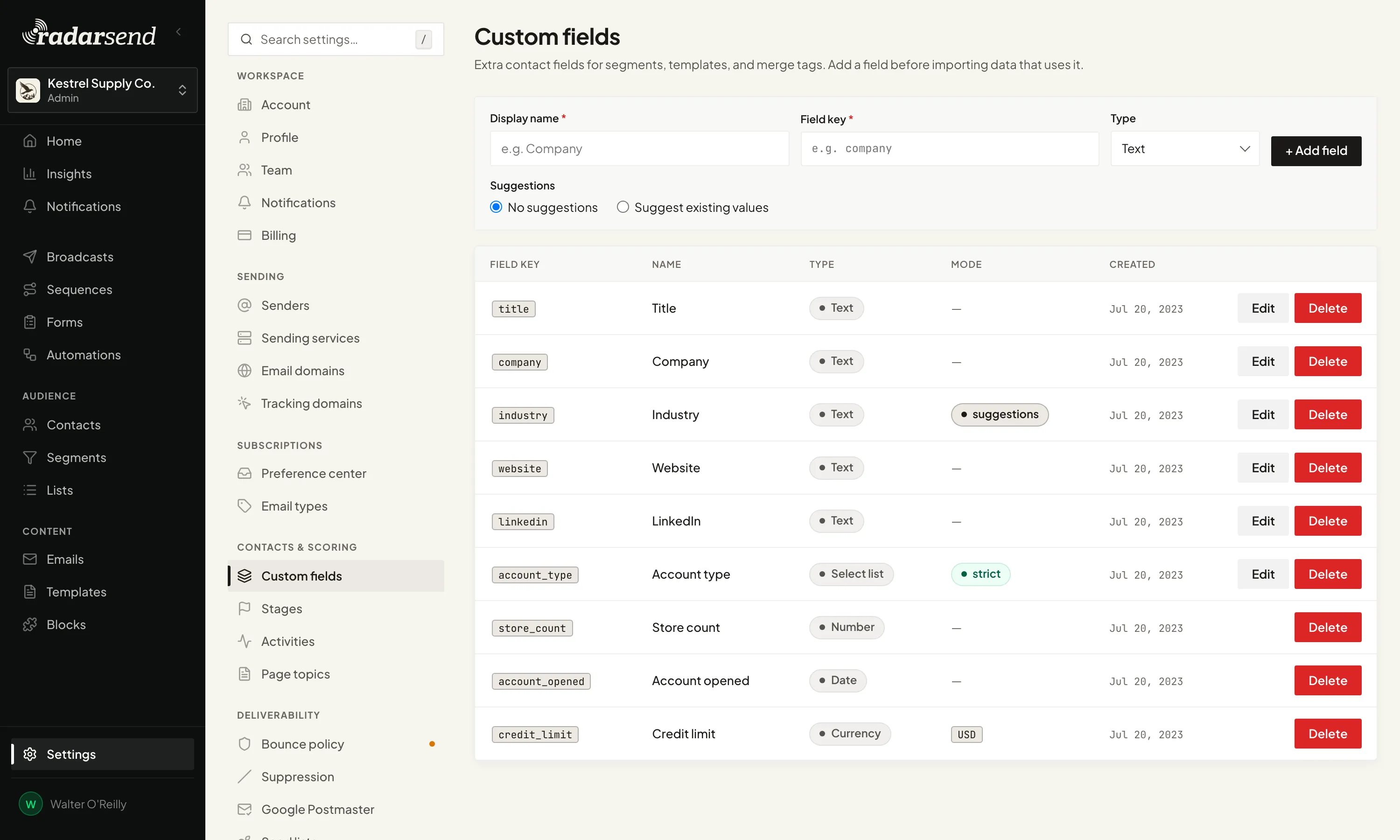
- Go to Settings→Contacts & scoring→Custom fields.
- Enter a Display name, for example
Loyalty tier. This is the label people see in RadarSend. - Check the Field key. RadarSend fills it in from the name, for example
loyalty_tier. This is the name used in merge tags, imports, and the API. It can’t be changed later. - Choose a Type (see below) and fill in any options it has.
- Click + Add field.
The field appears in the table below the form, with its Field key, Name, Type, Mode, and Created date.
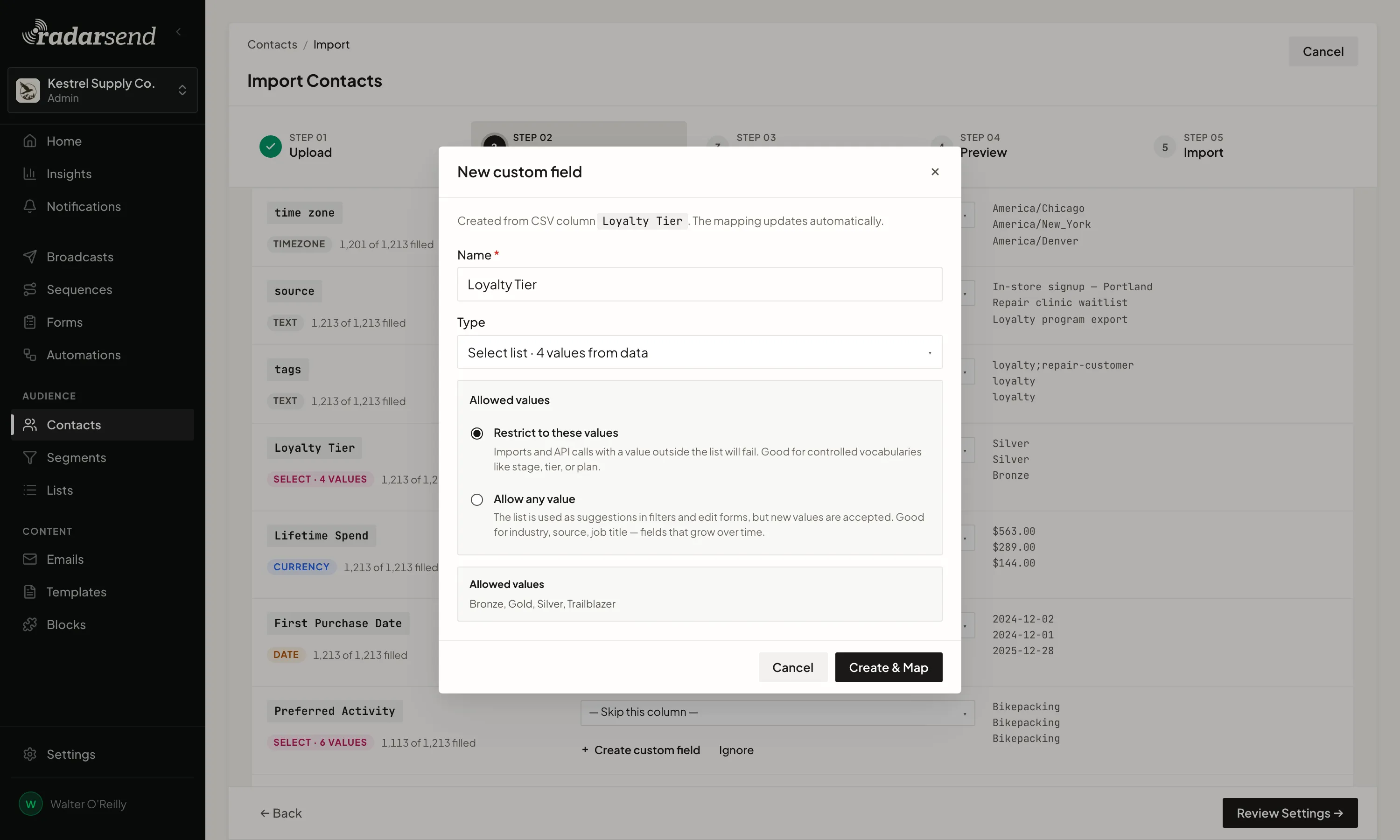
You can also create a field while you work, without coming to Settings first: from the column mapping step of an import (Create custom field), and from the form editor (Create a custom field).
Field types#
| Type | Holds | Notes |
|---|---|---|
| Text | Any text | Optionally suggest existing values when people fill it in. |
| Number | A number | |
| Yes / No | True or false | |
| Date | A calendar date | Can start a sequence on a date. |
| Date & time | A date with a time | Can start a sequence on a date. |
| Select list | One value from a list you define | Can be strict or open (below). |
| Tags | Several values at once | Good for interests or labels. |
| An email address | Checked for a valid format. | |
| URL | A web address | |
| Time of day | A time, like 09:30 | |
| Timezone | A timezone, like America/Chicago | |
| Country | A two-letter country code, like US | |
| Currency | An amount of money in one currency | Pick the Currency when you create it. It can’t be changed later. |
| Contact link | Another contact | For example, an account owner or a referrer. |
Select lists: strict or open#
For a Select list, enter the Values (comma-separated), then choose a Constraint:
- Restrict to these values — only listed values are accepted. An import row or API call with any other value fails. Use this for things with a fixed set of answers, like a tier or a plan.
- Allow any value — the list is offered as suggestions, but other values are accepted too. Use this for things that grow over time, like industry or job title.
A Text field has a similar choice: No suggestions, or Suggest existing values, which offers the values contacts already have when someone fills it in.
The table’s Mode column shows strict or suggestions for these fields, and the currency code for a Currency field.
Field keys#
The field key is how RadarSend refers to the field everywhere outside the app’s labels. It must start with a letter and use only lowercase letters, numbers, and underscores.
- RadarSend builds it from the display name: lowercase, with spaces and punctuation turned into underscores.
Loyalty Tierbecomesloyalty_tier. - A name that starts with a number, or that would give a reserved key such as
nameorfull_name, getscf_in front:2024 planbecomescf_2024_plan. This happens wherever the key is built for you, including a field you create from an import’s CSV column: a column headedNamebecomescf_name. - Keys must be unique in your workspace.
Don’t give a custom field the same key as a built-in field, such as company or phone. In merge tags, the custom field’s value would replace the built-in one.
Use your fields#
- Fill them in on a contact. Open the contact and click Edit. Custom fields are in the Custom Fields section. To show them on every contact’s Details card, click Customize fields on that card and add them.
- See them in the contacts list. Click Columns on the Contacts page to add them as columns, and select contacts to edit a field for many at once.
- Import into them. Map a CSV column to the field on the import’s mapping step, or stamp every imported contact with a value using Tag this import. See Import and manage contacts.
- Collect them on a form. Add the field to a form from the Custom fields group in the field picker. See Create and embed a form.
- Filter by them. In a segment or on the Contacts page, custom fields are under Contact Profile, below the Custom Fields divider. See Build a segment.
- Personalize emails. Use the field key as a merge tag:
{{ loyalty_tier }}, or{{ loyalty_tier | default: "Member" }}for contacts without a value. The { } Merge panel in the broadcast editor lists every field under Contact Fields. - Start a sequence on a date. The When a date is reached entry trigger works with any Date or Date & time field, for example a few days before a renewal date. See Choose an entry trigger.
- Set them automatically. A sequence Action step with Set a field, or an Automation with Set custom field, writes a value. See Sequence steps and Automate with rules.
- React when they change. The Contact field changes trigger, in sequences and Automations, fires when a field changes, optionally to a particular value.
- Read and write them through the API. Contacts carry their values in
custom_fields, keyed by field key. See Custom fields in the API reference.
Edit a field#
Click Edit on a Select list or Text field to rename it, change its values, or switch between strict and open. Other field types can’t be edited once created.
If you tighten a select list so that some contacts’ current values would no longer be allowed, RadarSend lists them. Click Add all to list to keep them, or choose Allow any value instead.
Delete a field#
Click Delete on the field’s row and confirm.
- If something uses the field, RadarSend lists what, and won’t delete it until you remove those references. It checks segments, saved filters, Automations (a Set custom field action or a Contact field changes trigger), sequences (an entry trigger, a set-field step, a condition, or a wait), and forms that collect the field. Archived sequences and forms aren’t counted.
- Contacts’ values aren’t erased. They’re hidden, and come back if you create a field with the same key again.
Merge tags aren’t checked. Before deleting a field, look for {{ … }} tags in your templates and emails that use it. A tag for a deleted field prints nothing.
Common issues#
- “A field with this key already exists.” Another field uses that key. Choose a different one.
- ”… is reserved.”
nameandfull_nameare used by the built-in name fields. Use a different key, such ascf_name. - Delete says the field can’t be deleted. Something still uses it; the dialog lists what. Change or remove those, then delete the field.
- Import rows fail on a select list. The field is set to Restrict to these values and the file has values that aren’t on the list. Add the values to the field, switch it to Allow any value, or fix the file.
- There’s no Edit button on my field. Only Select list and Text fields can be edited. To change another field’s type or name, create a new field and move the data over, for example with an export and re-import.
- My date field isn’t offered for a date trigger. Only Date and Date & time fields can start a sequence on a date. A date stored in a Text field won’t appear.
- A merge tag prints nothing. The contact has no value for that field. Add a
defaultto the tag, as above.
Good to know#
- The key is permanent, the display name isn’t. Change the label people see (on Select list and Text fields) without breaking merge tags or integrations.
- Currency amounts are whole numbers in the API. Over the API, a Currency value is in the smallest unit, such as cents, so
4999is $49.99. - Dates use
YYYY-MM-DD. Use that format in imports and API calls for Date fields. - Field changes can trigger things. Changing a value, whether by hand, import, or API, can start a sequence or fire an Automation that uses the Contact field changes trigger. Imports and bulk edits only do this when you switch it on.