Connect Stripe
If you take payments with Stripe, connect your Stripe account and RadarSend records each customer’s purchases, subscriptions, renewals, failed payments and refunds on their contact. You can then:
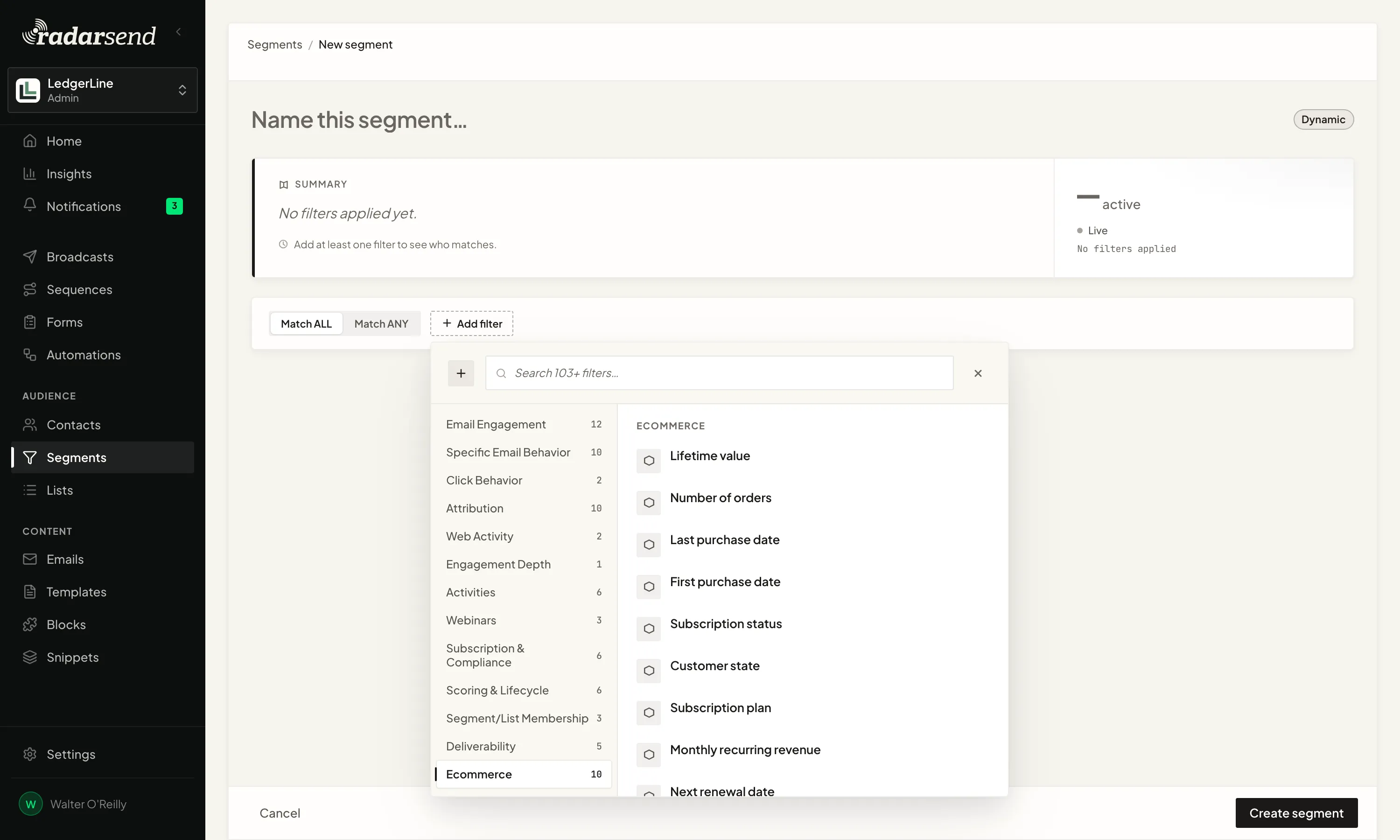
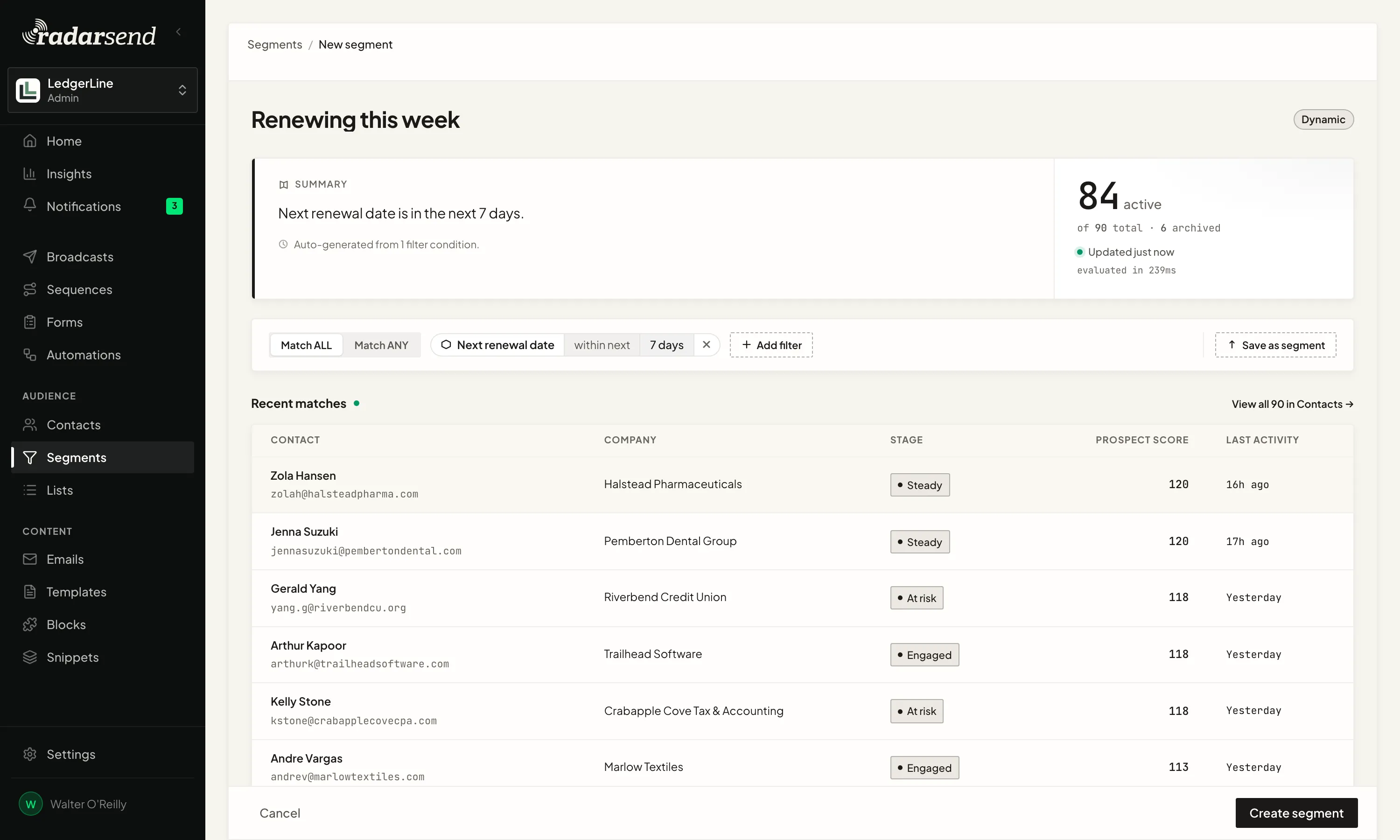
- Build a segment by lifetime value, number of orders, last purchase, subscription status or plan, or “renews in the next 7 days”.
- Start an Automation or a sequence when someone buys, renews, schedules a cancellation, or when their payment fails.
- Score purchases like any other activity.
- Send them to another app with a webhook subscription.
This is your own store’s Stripe account. It has nothing to do with how you pay for RadarSend, which is under Settings→Billing.
Before you begin#
- You need to be an admin in RadarSend to connect, change or disconnect Stripe. Anyone in your account can see the connection and its recent events.
- You need to be able to install apps on the Stripe account you sell from.
Connect Stripe#
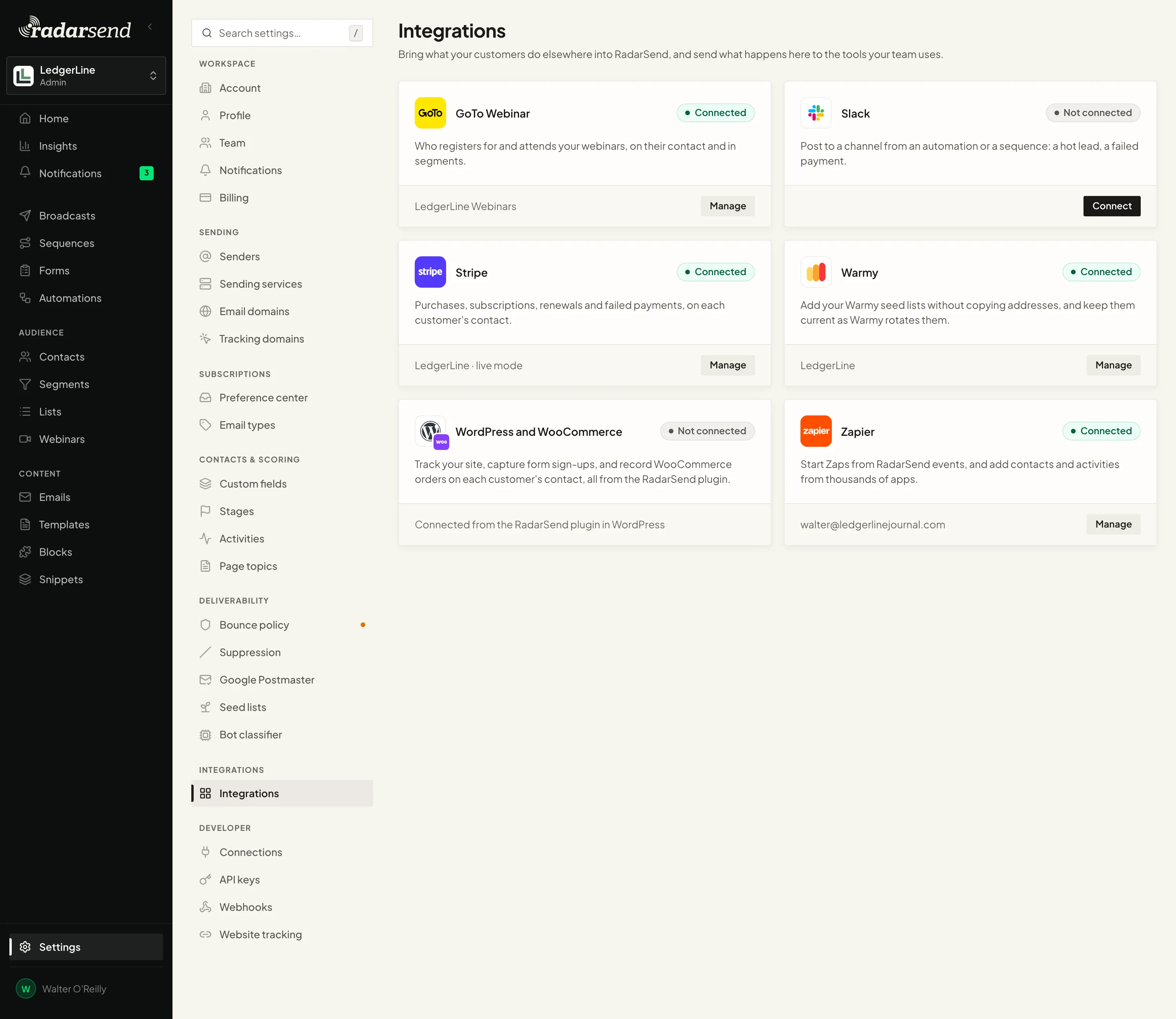
- Go to Settings→Integrations→Stripe.
- Click Connect Stripe.
- In Stripe, choose the account you sell from and approve the RadarSend app. It asks to read your customers, subscriptions and payments. It never changes anything in Stripe.
You come back to RadarSend, and a short setup opens:
- Tags: the tags customers get when RadarSend adds them as contacts.
- Stages: a stage for each customer state, or Don’t change (see Stages from Stripe).
- Import: check your choices and click Start import.
New purchases and renewals start arriving as soon as you connect. The history waits until you start the import, so the contacts it adds get your tags and stages from the start. If you close the setup, Set up and import opens it again, on the Stripe page or on Stripe’s card in Settings→Integrations.
A Stripe account can feed one RadarSend account. If you see That Stripe account is connected to another workspace, disconnect it there first.
Install from the Stripe App Marketplace#
You can also start in Stripe: install RadarSend from the Stripe App Marketplace, in the account you sell from. Stripe then sends you to RadarSend’s Finish connecting Stripe page.
- If you aren’t logged in, click Log in. You come back to the same page afterwards.
- Choose the workspace this Stripe account feeds. Only workspaces you’re an admin of are listed. If there’s just one, it’s already chosen.
- Check that the Stripe account shown is yours, and tick I just installed RadarSend in …, and it’s my account.
- Click Connect Stripe.
You land on Settings→Integrations→Stripe, and the same short setup opens: tags, stages, then the import.
- New to RadarSend? Click Create an account. Once your account is set up and checked out, in the same browser, RadarSend brings you back to finish connecting.
- Finish within an hour, in the same browser. After that the page says This Stripe install has expired. The app is still installed in Stripe, so go to Settings→Integrations→Stripe in the account you want and click Connect Stripe.
- You’re not an admin of any workspace means only a member’s access was found. Ask an admin to connect Stripe.
The history import#
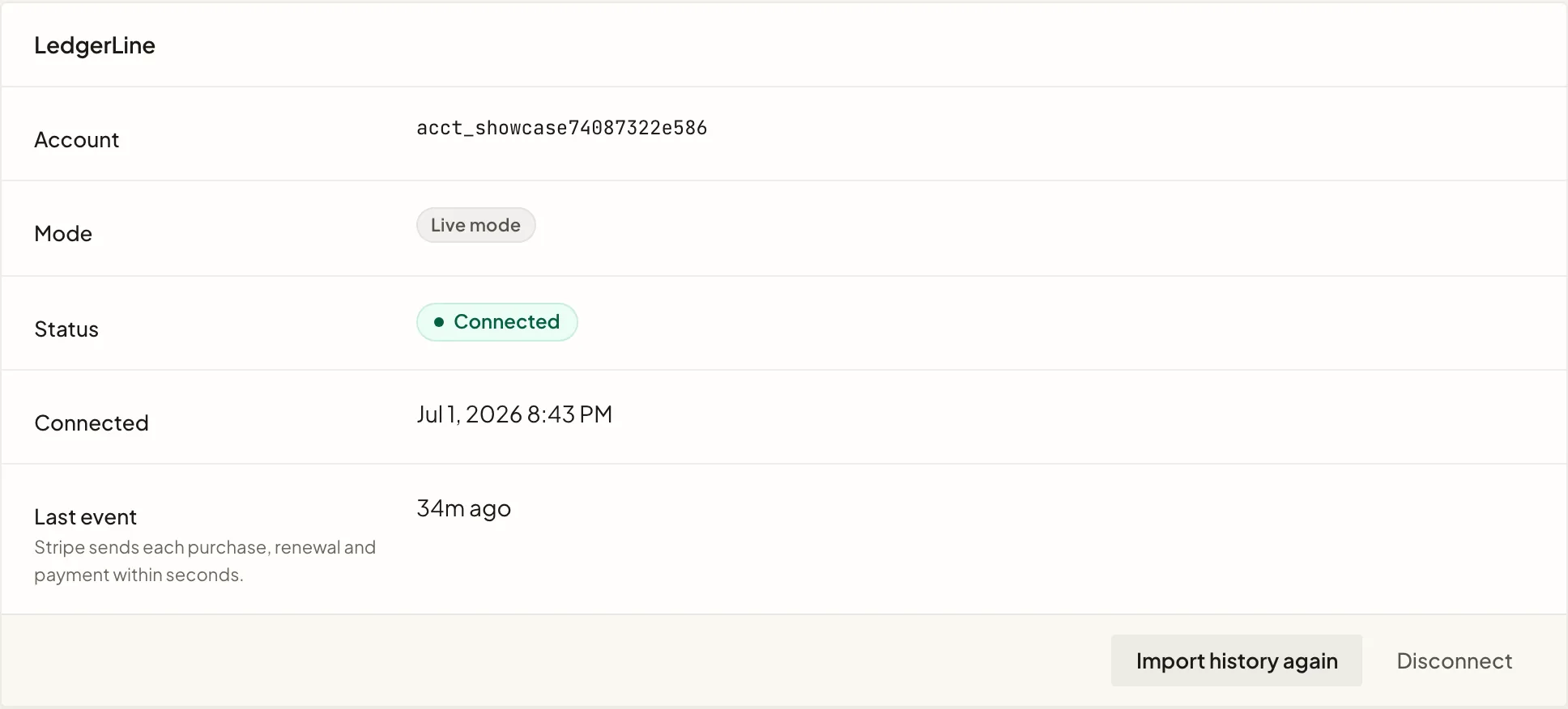
When you start the import, RadarSend reads your Stripe history: customers, subscriptions, invoices and payments. Settings→Integrations→Stripe shows how far it has got.

- Every order counts toward a customer’s lifetime value and order count, however old it is.
- Purchases, renewals and refunds from the last 12 months also appear on each contact’s activity and count toward their score.
- The import is history, not news. It doesn’t start any Automation or sequence, and it sends no webhooks. A score raised by past purchases doesn’t trigger a score threshold.
When the import finishes, each new purchase, renewal and failed payment arrives within seconds.
If something looks incomplete, click Import history again. Nothing is counted twice.
What RadarSend records#
Activities#
These appear on the contact’s activity, and you can use any of them as a trigger, a wait-for step or a scored activity:
| Activity | When |
|---|---|
| Purchase | A one-off payment, or the first payment of a new subscription. |
| Renewal | A subscription is charged for another period. |
| Payment failure | A subscription payment is declined. Stripe retries it, and RadarSend records when the next try is. |
| Refund | All or part of a payment is refunded. |
| Cancel pending | A subscription is set to end at the close of its current period. |
| Reactivation | A scheduled cancellation is undone, or a subscription that stopped paying is active again. |
| Cancellation | A subscription ends. |
| Expired | A subscription ends because its payments failed. |
| Trial ending | A free trial ends in three days. |
Contact fields#
RadarSend keeps these custom fields up to date on each customer. They are added to your account the first time a customer’s data arrives.
| Field | What it holds |
|---|---|
| Lifetime value | Everything they’ve paid, minus refunds, in your Stripe account’s currency. |
| Order count | How many orders they’ve placed. |
| First purchase, Last purchase | The dates of their first and latest orders. |
| Subscription status | Active, trialing, past due, unpaid, paused or canceled. With more than one subscription, the most active one. |
| Subscription plan | The plan’s product name. |
| MRR | What their subscriptions bring in per month. |
| Next renewal | When they will next be charged, unless the subscription is set to end. |
| Trial ends | When their trial ends, while they’re trialing. |
| Customer state | Where they stand as a customer: Customer, Trialing, Subscriber, Canceling or Canceled. See Stages from Stripe. |
Use them in segments (under Ecommerce when you add a filter), in merge tags, and in a sequence that starts a set number of days before a date, such as a reminder a week before the next renewal.
Lifetime value and MRR are in the currency your Stripe account pays out in. A payment taken in another currency counts once Stripe has converted it.
On the contact#
A contact who buys from you gets three things on their page:
-
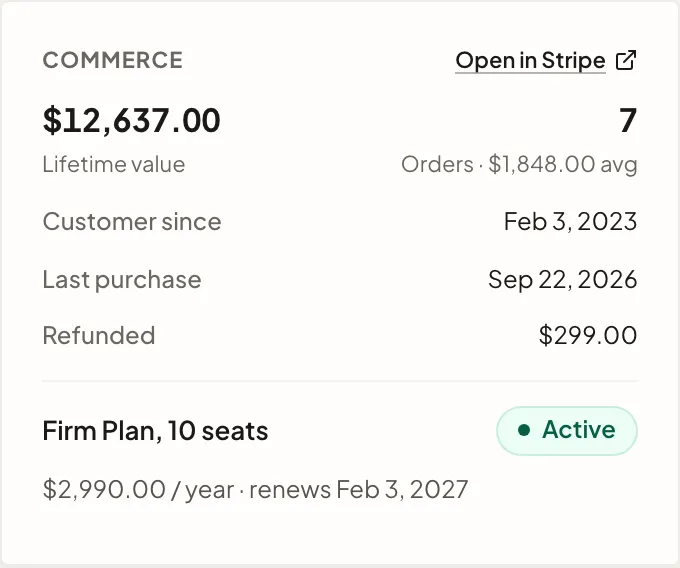
Commerce card, in the sidebar. It shows:
- their lifetime value and number of orders, with the average order;
- when they became a customer and when they last bought;
- anything refunded;
- each subscription still running, with its state (Active, Trialing, Past due, Canceling) and the date that matters: when it renews, when the trial ends, or when it ends.
Open in Stripe opens the customer in your Stripe Dashboard.
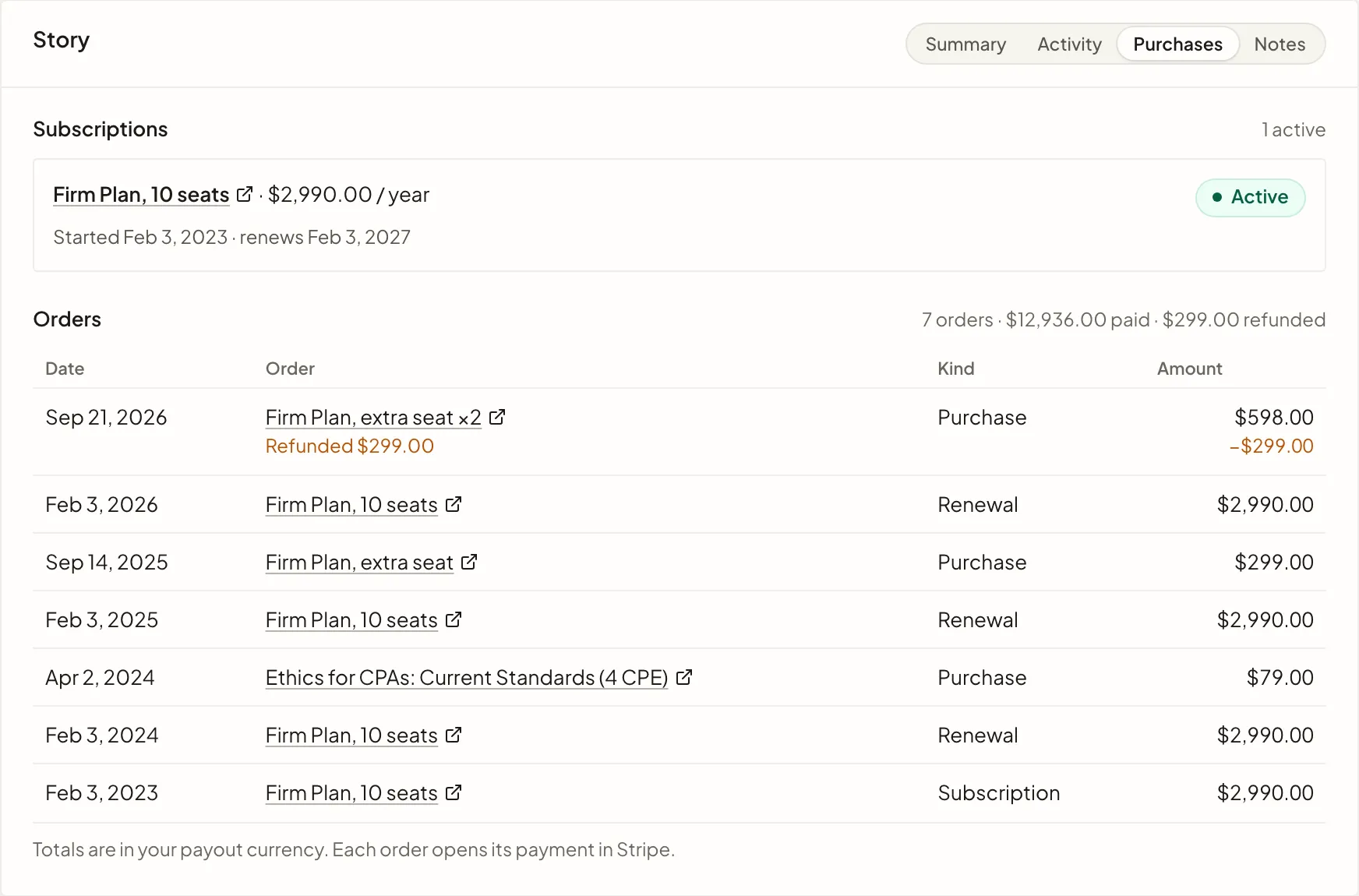
-
Purchases tab, in the Story card, beside Summary and Activity. It lists every subscription with its dates, and every order with its products, any refund and its kind (Purchase, Subscription, Renewal, Plan change). Each order opens its payment in Stripe.
-
Activity: purchases, renewals, refunds, failed payments and cancellations appear in the contact’s activity, with the amount on each one. They’re under the Conversions filter too.
A renewal, a failed payment or a cancellation is something Stripe did, not the contact’s attention, so it doesn’t count toward their engagement. A purchase does.
The tab and the card only appear for contacts with Stripe activity.
New contacts from Stripe#
A Stripe customer who isn’t a contact yet is added as a contact, subscribed the same way a file import adds people. Under Contacts from Stripe you can give these contacts tags; existing contacts keep their own. Their stage comes from Stages from Stripe once they’ve bought or subscribed. Until then they have your workspace’s default stage.
RadarSend also fills in what Stripe knows about the person:
- first and last name (Stripe keeps one name; the first word becomes the first name);
- phone and company;
- address (the billing address, or the shipping address when there’s no billing one).
It only fills fields that are empty. A value already on the contact always stays, and an address is filled only when the contact has no address at all, so two addresses never mix.
Someone whose data you’ve erased (because they asked to be forgotten) is never added back. Their purchases are still counted in your totals, but nothing is recorded on them.
Stages from Stripe#
RadarSend can keep each customer’s stage in step with where they stand in Stripe. Under Contacts from Stripe, choose a stage for any of these states, or leave it on Don’t change:
| State | Who |
|---|---|
| Customer | Has paid at least once, and holds no subscription. |
| Trialing | In a free trial, with no other subscription active. |
| Subscriber | Has at least one active subscription. A late payment doesn’t change that. |
| Canceling | Every subscription they hold is set to end. |
| Canceled | Every subscription they held has ended. |
Someone with several subscriptions is a Subscriber as long as one of them is active, and a Customer who subscribes moves up to Subscriber.
When a customer’s state changes, RadarSend moves them to that state’s stage, and their activity shows the change as made by Stripe. A stage you set by hand stays until their state next changes. When you save a stage for a state, customers already in that state move to it too, without starting any automations.
The same states are in the Customer state field, so you can also use them in segments.
Recent events#
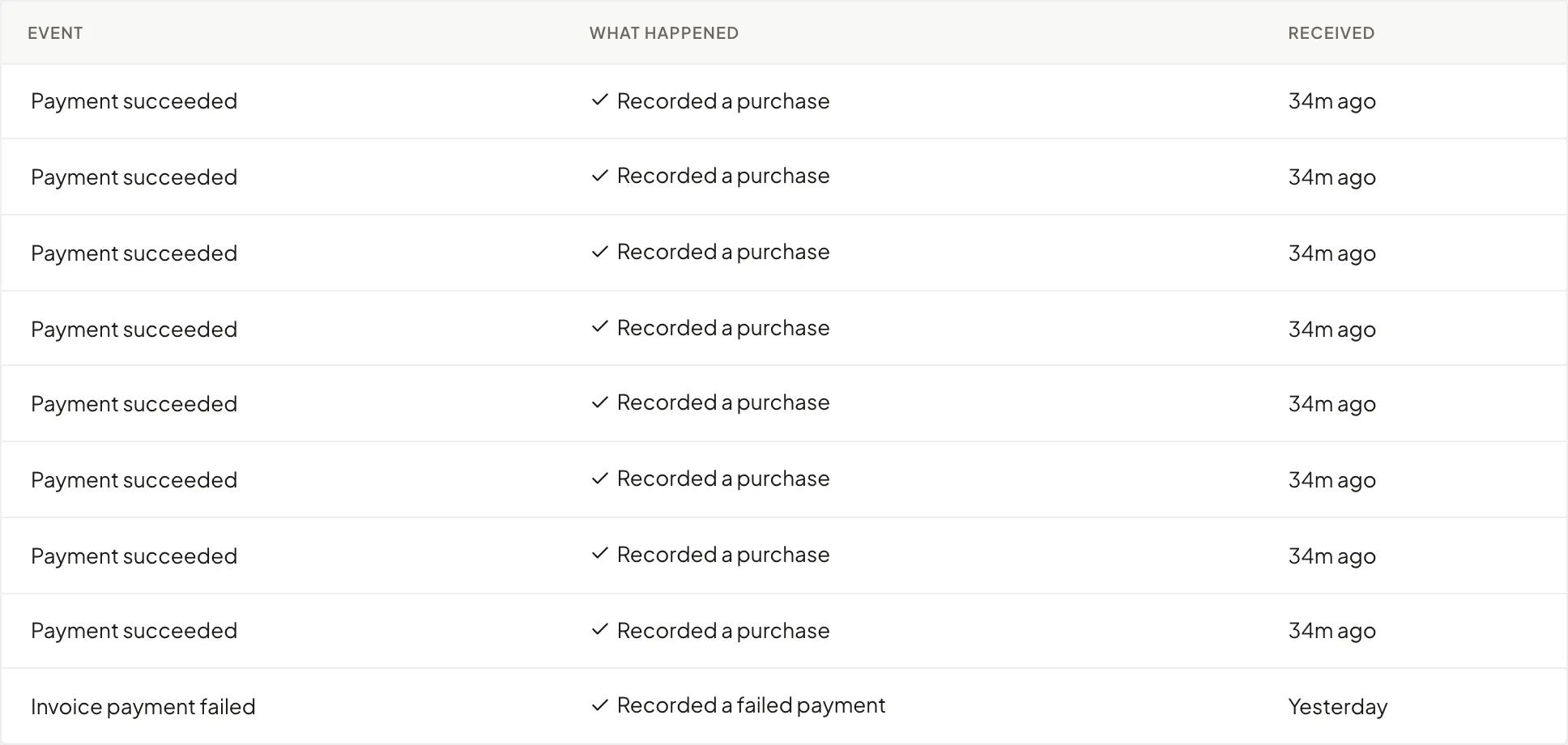
The bottom of Settings→Integrations→Stripe lists the last 50 events Stripe sent and what RadarSend did with each: recorded a purchase, updated a subscription, added a contact, or found nothing to record. A failed event shows why. RadarSend retries it, and Stripe sends it again if it still fails.
Test mode#
Your account accepts one Stripe mode, live or test, and the Stripe page says which. Installing the app in the other mode shows That install was in the wrong mode, and nothing is connected. This keeps test purchases off your real contacts.
In test mode, the history import also reads customers and subscriptions on Stripe test clocks, which Stripe otherwise leaves out of its lists.
Disconnect Stripe#
- Go to Settings→Integrations→Stripe.
- Click Disconnect.
New purchases and renewals stop arriving, and RadarSend no longer reads your Stripe account. What’s already on your contacts stays: their activities, scores and commerce fields.
Disconnecting doesn’t remove the app from Stripe, because Stripe doesn’t let an app uninstall itself. Stripe still lists RadarSend as installed, and the Stripe page says RadarSend is still installed in Stripe, with a link to Installed apps in your Stripe Dashboard. To uninstall it completely, open that page for the account you connected, click ⋯ next to RadarSend, choose View app details, then Uninstall app. If you remove the app in Stripe first, the Stripe page says The RadarSend app was removed in Stripe.
Troubleshooting#
Stripe isn’t accepting this connection any more. The app’s authorization was revoked or expired. Stripe’s card in Settings→Integrations says Needs reconnecting, and Integrations in the settings menu shows an amber dot. Click Reconnect. Nothing recorded so far is lost. Reconnecting imports your history again, which fills in anything that happened in between.
A purchase is missing. RadarSend checks every subscription against Stripe each night, and records anything a lost event left out. For a one-off payment, click Import history again.